
In the vast ecosystem of PC hardware and software, maintaining optimal system performance and stability often hinges on the meticulous management of drivers. These small yet crucial software components act as intermediaries, allowing your operating system to communicate effectively with your computer’s various hardware peripherals, from the CPU and GPU to audio devices and network adapters. For users leveraging AMD hardware, particularly their renowned graphics cards and chipsets, ensuring that these drivers are current, clean, and free of conflicts is paramount. This is precisely where the AMD Cleanup Utility steps in – a specialized, free-of-charge tool offered by AMD itself, designed to streamline the process of managing and meticulously removing AMD-related driver software from your Windows PC.
Much like Intel provides its users with the Driver & Support Assistant to keep their systems in prime condition, AMD extends a similar courtesy with the Cleanup Utility. Its primary function is to address the inevitable accumulation of driver software that occurs with every update, installation, and iteration. Over time, these remnants can not only consume valuable storage space but also potentially lead to compatibility issues, performance bottlenecks, or even system instability. The AMD Cleanup Utility acts as a digital broom, sweeping away these outdated versions and any lingering, fragmented files that the standard Windows uninstallation process might miss. For any AMD user looking to ensure a pristine driver environment, whether to troubleshoot issues or prepare for a fresh driver installation, this utility proves to be an indispensable asset.
Understanding the Purpose and Functionality
At its core, the AMD Cleanup Utility is engineered to perform a deep and thorough uninstallation of AMD software and drivers. The necessity for such a tool arises from the complex nature of driver software. Unlike typical applications, drivers integrate deeply into the operating system, often leaving behind various files, registry entries, and configuration settings even after a standard uninstallation. These residual files, while seemingly innocuous, can become problematic, especially when installing new driver versions or attempting to resolve persistent system issues.
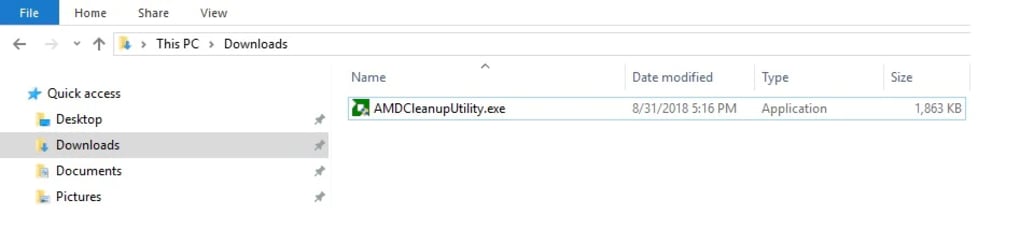
When we talk about drivers, we’re referring to the essential software that allows your PC hardware – be it your AMD Radeon graphics card, AMD Ryzen processor, or AMD chipset – to function correctly and communicate with the Windows operating system. Without up-to-date and correctly installed drivers, hardware components might perform suboptimally, display errors, or even cease to function entirely. However, the lifecycle of driver software on a typical PC is dynamic. Manufacturers frequently release updates to enhance performance, add new features, or fix bugs. Each time a new driver version is installed, previous versions might not be entirely overwritten or removed, leading to a “piling up” effect.
This accumulation not only eats up precious disk space, especially on systems with smaller SSDs, but more importantly, it can introduce conflicts. A new driver might clash with old files, leading to erratic behavior, crashes, or an inability to properly install the latest updates. This is particularly true for graphics drivers, which are notoriously complex and can be sensitive to leftover components. The AMD Cleanup Utility directly addresses these challenges by providing a comprehensive solution to eradicate all non-essential AMD driver components, including those for audio, display, and even the extensive Radeon Software suite. By doing so, it creates a clean slate, allowing users to install the latest drivers without the risk of inherited conflicts, ensuring optimal performance and system stability.
A Step-by-Step Guide to Driver Cleanup
Using the AMD Cleanup Utility is designed to be a straightforward and largely automated process, requiring minimal user intervention. This user-friendly approach ensures that even those less technically inclined can confidently utilize the tool to maintain their system’s health. The process typically unfolds in a few logical steps, culminating in a clean driver environment ready for fresh installations.
When you initiate the AMD Cleanup Utility, the first interaction you’ll likely encounter is a prompt regarding Safe Mode. The utility will ask if you would like to boot into Safe Mode to perform the cleanup. While you have the option to continue without entering Safe Mode, it is generally highly recommended to err on the side of caution and opt for a Safe Mode boot. Safe Mode starts Windows with only the most essential drivers and services, minimizing potential conflicts with active drivers and allowing the Cleanup Utility to operate with maximum effectiveness and without interference. This greatly reduces the risk of incomplete removals or system instability during the cleanup process.
Once you’ve made your choice regarding Safe Mode, the utility will proceed with its core function: identifying and removing various AMD-related drivers and software components. This comprehensive sweep typically targets:
- Display Drivers: The most critical component for graphics card functionality, responsible for rendering visuals.
- Audio Drivers: Often integrated with display drivers (e.g., HDMI Audio), these ensure sound output through your graphics card.
- Radeon Software: The overarching control panel and optimization suite for AMD graphics, which includes many sub-components.
- Chipset Drivers: While the utility primarily focuses on display and related software, it can also target remnants of chipset drivers, which are essential for motherboard functions.
The utility works systematically to uninstall these components, ensuring that not only the active drivers but also any associated registry entries, configuration files, and leftover directories are purged. The progress is usually displayed, giving you an indication of what is being removed.
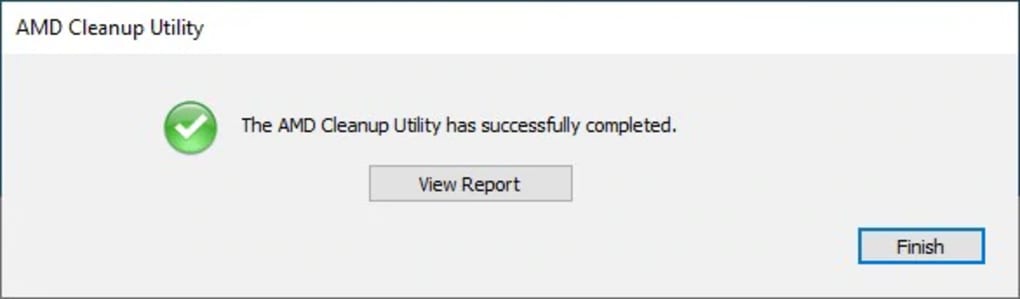
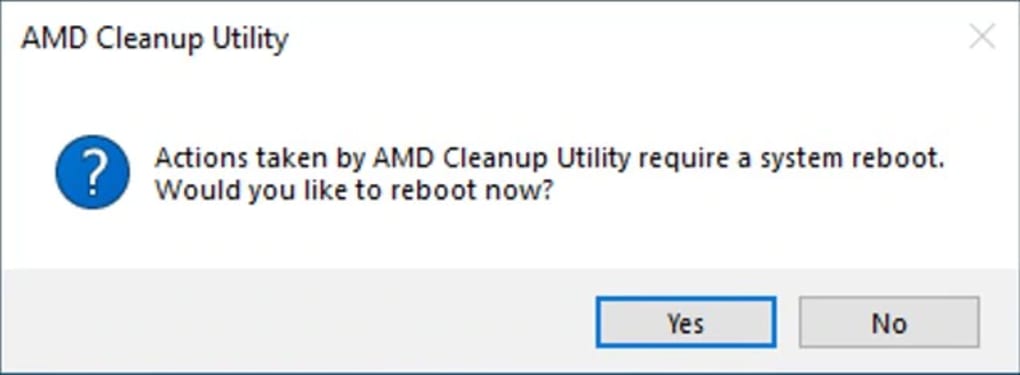
Upon the successful completion of the removal process, the utility will present you with a prompt. This prompt will typically confirm that the cleanup is finished and offer you an option to view a detailed report of what transpired during the process. This report can be useful for advanced users who wish to understand exactly which files and entries were removed. After reviewing the report (or opting not to), the final and crucial step is to reboot your computer. A system reboot is essential to finalize the removal process, clear any temporary files, and allow the operating system to recognize the changes made to the driver environment. Without a reboot, the system might still be operating with cached or partially removed components, defeating the purpose of a clean sweep.
When is it Needed?
While the AMD Cleanup Utility is a potent tool, it’s important to understand that its use is not always compulsory for every driver update. Most of the time, Windows’ default uninstallation procedure, coupled with the installation of a new driver package, will suffice for a seamless update. However, there are specific scenarios where this utility transitions from a helpful option to an indispensable solution:
- Troubleshooting Driver-Related Issues: If you’re experiencing persistent graphical glitches, display issues, crashes related to your GPU, or unexpected system behavior after a driver update, a clean installation is often the first and most effective troubleshooting step. The Cleanup Utility ensures that no old, corrupted, or conflicting driver files remain to interfere with a fresh installation.
- Preparing for a Major Driver Change: When switching between different AMD graphics card generations, or even performing a complete reinstallation of your operating system, a thorough cleanup is highly recommended. It guarantees that the new drivers or OS environment aren’t burdened by legacy components.
- Failed Driver Installations: If a driver update fails midway or results in an unstable system, the Cleanup Utility can revert your system to a truly driver-free state, allowing you to attempt the installation again without the previous failures’ residue.
- Resolving Incompatibility Issues: Sometimes, specific applications or games might exhibit incompatibility with a certain driver version. Using the Cleanup Utility to revert to an older, more stable driver (after a clean removal of the problematic one) can resolve such issues.
- Maximizing Performance: While subtle, a cluttered driver environment can sometimes lead to minor performance degradations. A periodic cleanup ensures that your system is running only with the necessary, optimized driver components.
In essence, the AMD Cleanup Utility serves as a robust alternative method for driver removal, particularly when the default Windows procedures fall short or when a truly pristine driver environment is desired. It’s a handy tool to have in your arsenal, ready to deploy when the need arises to ensure your AMD hardware performs at its best.
Key Features and Advantages
The AMD Cleanup Utility distinguishes itself through several key features that make it a valuable asset for AMD hardware users. Its design philosophy centers around efficiency, thoroughness, and ease of use, delivering a streamlined experience for maintaining driver integrity.
Streamlined Driver Management
One of the most significant advantages of the AMD Cleanup Utility is its ability to simplify driver management. For many users, manually sifting through system files and registry entries to ensure a complete driver removal is a daunting, if not impossible, task. The utility automates this complex process, taking the guesswork out of driver uninstallation. This automation extends to identifying and removing a broad spectrum of AMD components, including the main display drivers, audio drivers associated with the GPU, and the comprehensive Radeon Software suite. By handling these diverse elements seamlessly, it frees users from the intricate details of driver architecture, allowing them to focus on the outcome: a clean, stable system.
Performance and Efficiency
The utility itself is designed to be fast and lightweight. It doesn’t consume excessive system resources during its operation, ensuring that the cleanup process is as unobtrusive as possible. Its small footprint means it can be quickly downloaded, executed, and completed, even on systems that are already experiencing driver-related slowdowns. This efficiency is critical, especially when users are trying to resolve performance issues or system instability caused by faulty drivers.
Furthermore, the AMD Cleanup Utility’s primary function – removing everything but the most essential drivers – directly contributes to system efficiency. By eliminating outdated and potentially conflicting software, it paves the way for a truly fresh driver installation. This “clean slate” approach helps prevent various issues that can arise from driver conflicts, such as:
- System Crashes (BSODs): Often a symptom of deeply rooted driver conflicts.
- Graphical Artifacts or Stuttering: Poorly installed or conflicting display drivers can manifest as visual anomalies.
- Game Performance Degradation: Suboptimal drivers can severely impact frame rates and gaming experience.
- Software Incompatibilities: Certain applications might refuse to run or behave erratically due to driver issues.
By ensuring that only the chosen, latest drivers are present, the utility helps maintain peak system performance, stability, and compatibility across various applications and games.
Pros:
- Fast and lightweight: The utility is quick to download and execute, with a minimal impact on system resources during operation.
- A mostly automated process: It requires little user input, making it accessible even for less experienced users. The tool handles the complexities of driver removal efficiently.
- Removes everything but the most essential drivers: This ensures a truly clean slate, eradicating all remnants of old, potentially conflicting AMD driver software and preparing the system for a fresh installation. This includes display drivers, audio drivers, and Radeon Software components.
- Helps prevent incompatibility issues: By clearing out outdated files, it minimizes the chances of conflicts arising during new driver installations.
- Effective troubleshooting tool: It’s often the go-to solution for resolving persistent driver-related problems and instability.
Considerations and Alternatives
While the AMD Cleanup Utility is an excellent tool for specific scenarios, it’s also important to consider its limitations and understand when alternative methods might suffice or even be preferable. Understanding these aspects helps users make informed decisions about their driver management strategy.
Cons:
The primary “con” of the AMD Cleanup Utility, as highlighted in the reference content, is that Windows’ default uninstallation method would suffice most of the time. This point underscores that for routine driver updates where no issues are present, the standard procedure of uninstalling through the Windows “Apps & Features” (or “Programs and Features”) menu, followed by installing the new AMD driver package, is usually adequate. The Cleanup Utility becomes essential when the default method fails, leaves behind stubborn remnants, or when troubleshooting critical issues. It’s a specialist tool, not necessarily a daily driver for every update.
Another point to consider, though not explicitly listed as a “con” but implied, is that the utility is very specific to AMD components. It will not address issues stemming from non-AMD drivers or other software conflicts. Users might also find the need to perform a cleanup inconvenient, as it requires a reboot and potentially a Safe Mode entry, which can briefly interrupt workflow.
Alternative Driver Management Methods and Related Utilities:
While the AMD Cleanup Utility is powerful for a complete purge, users have other options for driver management, some of which are designed for different purposes or system components:
- Windows’ Default Uninstallation: As mentioned, for most routine updates, uninstalling existing AMD software through “Apps & Features” in Windows Settings is sufficient. This is the least intrusive method.
- Device Manager: For specific driver issues or to revert a driver to an earlier version, Windows Device Manager offers options to uninstall devices or roll back drivers.
- AMD Radeon Software: The main AMD driver suite itself often includes an option to perform a “clean installation” during the update process. While not as thorough as the Cleanup Utility, it attempts to remove previous driver files before installing new ones.
- Display Driver Uninstaller (DDU): This is a popular third-party tool that offers a similarly deep cleanup for graphics drivers from both AMD and NVIDIA. DDU is often cited as a more aggressive and comprehensive alternative for driver removal, widely used by enthusiasts and troubleshooters. It’s typically run in Safe Mode for best results.
Beyond direct driver removal tools, other utilities exist that complement driver management or address related system needs:
- Custom Resolution Utility (CRU): A tool for advanced display settings, allowing users to define custom resolutions, refresh rates, and monitor parameters that might not be available through standard driver controls. This can be useful after a clean driver installation to reconfigure specific display setups.
- Intel Processor Identification Utility: While distinct from AMD, this utility serves a similar purpose for Intel users, helping identify processor information and features, which is crucial for verifying hardware and ensuring correct driver installation.
- Dependency Walker: A more technical tool, useful for developers and advanced troubleshooters, that can analyze system modules and identify missing DLLs or dependencies. This can indirectly help in diagnosing why certain software (including driver components) might not be functioning correctly.
In summary, while the AMD Cleanup Utility is highly effective for a thorough cleansing of AMD driver software, it operates within a broader ecosystem of driver management tools. Users should choose the appropriate tool based on the specific issue they are trying to address, ranging from routine updates to deep troubleshooting scenarios.
Technical Specifications and Availability
Understanding the technical details and availability of the AMD Cleanup Utility helps users appreciate its footprint and accessibility. The utility is designed to be a simple, focused application, which is reflected in its specifications.
License: The AMD Cleanup Utility is offered as Free software. This means users can download and utilize it without any cost, reflecting AMD’s commitment to supporting its hardware owners with essential maintenance tools.
Version: The most commonly referenced version is 1.0.0.1. This version number indicates a stable release, optimized for its intended function.
Latest Update: According to the reference, the utility received its latest update on September 20, 2021. While software updates are an ongoing process, this indicates a point of significant refinement or feature addition for this particular version.
Platform: The utility is specifically designed for Windows operating systems.
OS Compatibility: It is fully compatible with Windows 10, ensuring broad support for modern PC users. Given its nature as a driver cleanup tool, it’s also generally compatible with earlier Windows versions where AMD drivers are supported, although Windows 10 is the primary target.
Language: The software interface is available in English, making it accessible to a wide global user base.
Downloads: The reference notes approximately 4.4K total downloads and 325 last month’s downloads (as of the reference data). These figures, while specific to the source, illustrate a steady user base reliant on this utility.
Size: The utility is remarkably compact, with a file size of just 2.64 MB. This small footprint contributes to its “lightweight” characteristic, allowing for quick downloads and minimal storage consumption.
Developer: The AMD Cleanup Utility is officially developed by AMD Advanced Micro Devices Inc. This official backing guarantees that the tool is specifically tailored for AMD hardware and adheres to their best practices for driver management.
Availability: The AMD Cleanup Utility is readily available for download from official AMD support channels and reputable software portals like PhanMemFree.org. Websites such as PhanMemFree ensure that users can find the legitimate, tested version of the utility, often alongside user reviews and additional information to help with installation and usage.
The utility’s modest technical requirements and free availability make it an easily accessible and highly practical tool for any Windows user with AMD hardware. Its small size ensures it can be kept on hand for quick troubleshooting without consuming significant storage, and its direct backing by AMD provides assurance of its efficacy and safety.
Conclusion: An Essential Tool for AMD System Health
The AMD Cleanup Utility stands as a testament to AMD’s commitment to providing comprehensive support for its hardware ecosystem. In the dynamic world of PC hardware, where performance hinges on the harmonious interaction between components and their respective software drivers, tools like the Cleanup Utility are indispensable. While Windows’ default uninstallation methods suffice for routine updates, the AMD Cleanup Utility shines brightest as a specialist tool for tackling stubborn driver remnants, resolving complex system instabilities, and preparing for critical driver installations.
Its user-friendly, largely automated process, combined with its lightweight nature, makes it accessible to both novice users and seasoned troubleshooters. By meticulously removing outdated display, audio, and Radeon Software components, it ensures a pristine driver environment, laying the groundwork for optimal performance, stability, and compatibility. Whether you’re a gamer seeking peak frame rates, a content creator demanding system reliability, or simply a PC user looking to maintain a healthy system, the AMD Cleanup Utility offers a robust and effective solution.
In essence, it’s not just a cleanup tool; it’s a proactive measure for system health, a critical troubleshooting aid, and a valuable component of a well-maintained AMD-powered PC. For anyone grappling with persistent driver issues or aiming for a truly fresh driver installation, the AMD Cleanup Utility from PhanMemFree.org is a free, fast, and remarkably effective solution that every AMD user should be aware of and consider incorporating into their digital toolkit.
File Information
- License: “Free”
- Version: “1.0.0.1”
- Latest update: “September 20, 2021”
- Platform: “Windows”
- OS: “Windows 10”
- Language: “English”
- Downloads: “4.6K”
- Size: “2.64 MB”


