
Process Killer is a straightforward yet potent application designed to terminate unresponsive or frozen processes on a Windows system. Unlike the more comprehensive task managers, Process Killer prioritizes speed and efficiency, focusing solely on the core function of forcefully closing programs. This makes it a valuable tool for experienced users who understand the potential risks associated with directly terminating processes. However, its lack of advanced features and safety precautions renders it unsuitable for beginners.
Understanding Process Killers and Their Risks
Before delving into the specifics of Process Killer, it’s crucial to understand the fundamental concept of process killing and the potential consequences involved. Every application running on your computer operates as a process, a distinct unit managed by the operating system. Sometimes, these processes can become unresponsive, freezing or crashing, rendering the application unusable. While the standard Windows Task Manager allows you to end these processes, Process Killer offers a more direct and forceful approach.
The primary advantage of a dedicated process killer like this application is its speed. It bypasses many of the checks and prompts found in the Task Manager, leading to quicker termination of stubborn processes. However, this speed comes at a cost. Forcefully terminating a process can lead to data loss, system instability, or even corruption if the application was in the midst of saving critical information. Furthermore, improperly ending a system-critical process can lead to a system crash requiring a reboot.
This inherent risk is why Process Killer and similar applications are explicitly recommended for advanced users. The software lacks safety nets and warnings; it assumes the user possesses a thorough understanding of their system and the implications of forcefully terminating specific processes. An incorrect choice could lead to severe consequences that may require significant troubleshooting or even system recovery.
Process Killer’s Interface and Functionality
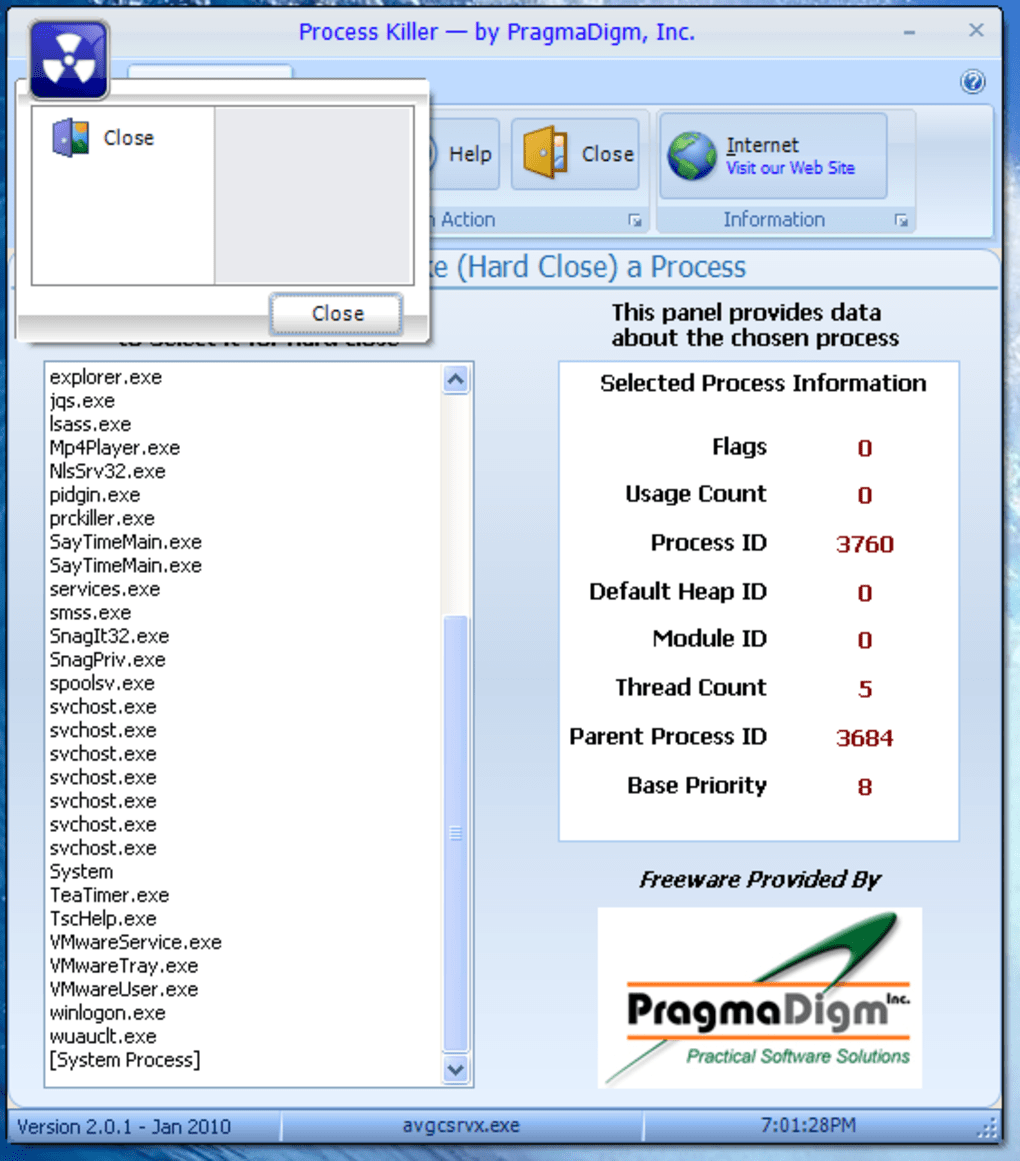
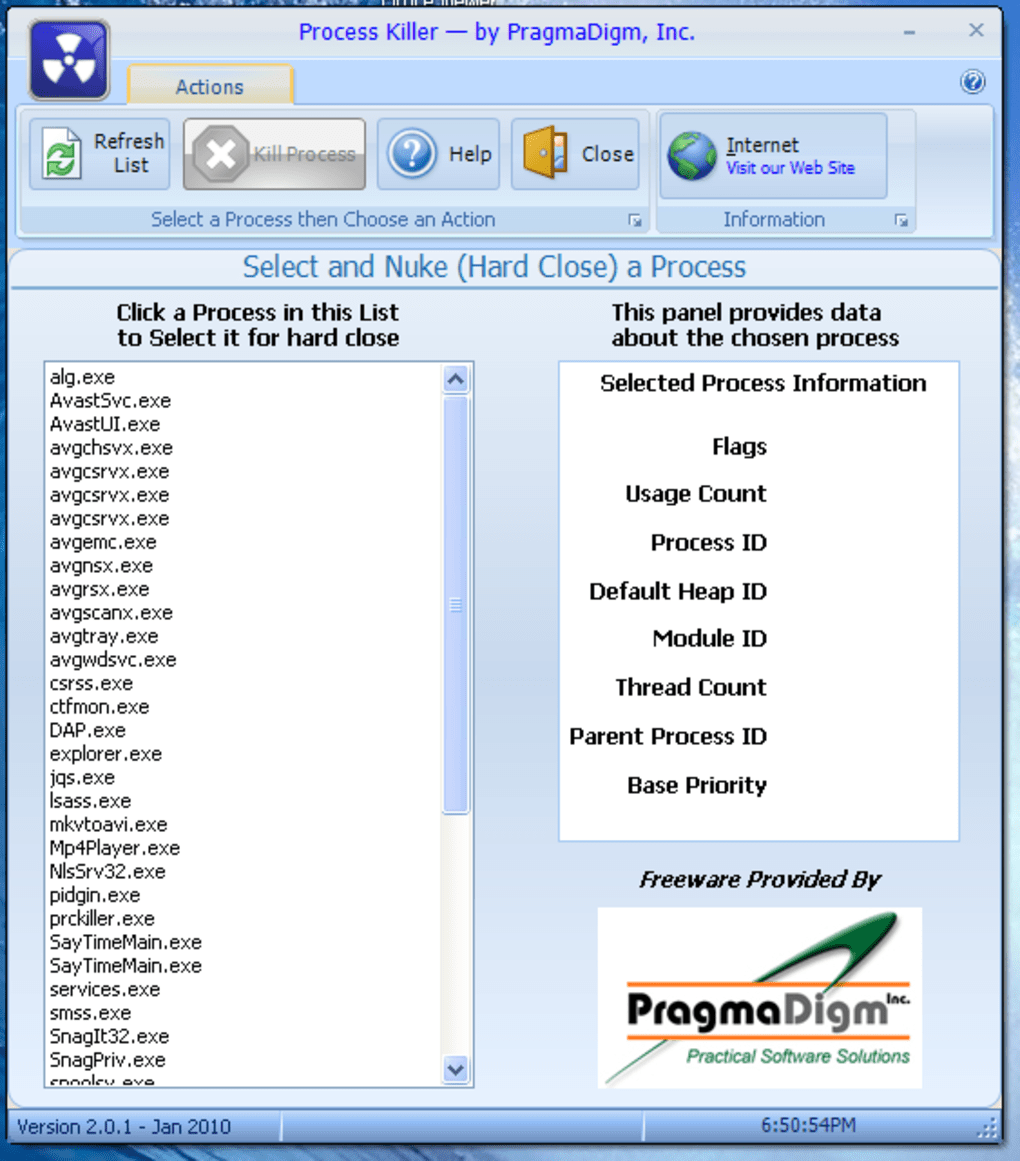
Process Killer boasts a remarkably minimalist interface. Upon launching, the application presents a list of currently running processes on the left-hand side. This list provides basic information such as process name and ID. On the right, it displays more detailed technical data about a selected process, including memory usage and handle counts. The core functionality, the “Kill Process” command, resides prominently in the top toolbar. This simple design is purposeful; the application prioritizes ease of use for its intended audience of experienced users.
There are no configurable settings or advanced options. This spartan design is both a strength and a weakness. Its simplicity makes it exceptionally fast and easy to use for its core function: killing processes. However, the lack of configurability means it offers no sophisticated features such as filtering, prioritization, or the ability to monitor resource usage.
Comparison to Alternative Solutions
While Process Killer effectively terminates processes, it lacks the broader functionality of alternative tools. Compared to Windows Task Manager, Process Killer sacrifices versatility for speed. The Task Manager offers a detailed overview of system resources, allows for monitoring individual process activity, and provides options to smoothly end processes or suspend them, mitigating some of the risks associated with forceful termination.
Other applications, such as Ultimate Process Killer and Kill Process, offer a more balanced approach. While still prioritizing process termination, these alternatives often include additional features, such as a more visual representation of processes and resource usage, enhancing user experience and potentially reducing the risk of accidental termination of essential processes. Open-source options like “Killer” provide users with access to the source code, allowing for greater transparency and customization, though this requires programming knowledge.
The choice between Process Killer and these alternatives depends heavily on the user’s needs and technical expertise. For experienced users who solely require a swift method to kill unresponsive processes, Process Killer’s minimalist design might be advantageous. However, users seeking a more comprehensive and safer tool should opt for a more feature-rich alternative that offers greater control and visibility into system processes.
Practical Applications and Use Cases
Process Killer shines in specific scenarios where speed and decisiveness are paramount. Imagine a situation where a crucial application has frozen, locking up your entire system. Attempting to use the Task Manager might prove too slow, leaving you with the option of a full system reboot – a time-consuming process potentially leading to data loss if auto-save features are not enabled or functioning correctly. In such cases, Process Killer’s immediate action can save valuable time and prevent data loss.
However, it is essential to use it judiciously and only when absolutely necessary. The tool is not designed for regular management of system processes. Its purpose is for emergency situations where a program has become completely unresponsive and conventional methods have failed. Improper use can easily lead to unexpected consequences, including system instability or even data corruption.
Furthermore, understand that Process Killer’s functionality doesn’t extend beyond terminating processes. It doesn’t offer any monitoring or management capabilities. It cannot proactively identify and prevent problematic processes, nor does it provide insightful data on system resource usage. Its focus is exclusively on the immediate termination of a process, nothing more, nothing less.
Conclusion: A Tool for the Adept, Not the Novice
Process Killer represents a niche utility, exceptionally effective within its limited scope but demanding caution and expertise from the user. Its simplicity and speed are appealing, especially in emergencies, but the absence of safety mechanisms and advanced features means its primary use-case is limited to highly skilled users. The potential for accidental system disruption underscores its suitability only for those proficient in troubleshooting and recovering from system errors. For casual users, the risks significantly outweigh the benefits, emphasizing the need to explore alternative, safer, and more comprehensive task management solutions available within the Windows ecosystem. Always proceed with extreme caution and understand the potential ramifications before employing any process killer application.
File Information
- License: “Free”
- Version: “2.0.1”
- Latest update: “February 25, 2010”
- Platform: “Windows”
- OS: “Windows 98”
- Language: “English”
- Downloads: “15.3K”
- Size: “1.05 MB”


