
In today’s digital landscape, the ability to record screen activities has become indispensable for a wide range of users, from educators and content creators to gamers and business professionals. Whether you need to create tutorials, capture online meetings, record gameplay, or save streaming videos, a reliable screen recorder is a crucial piece of software. Among the myriad of options available, AnyMP4 Screen Recorder stands out as a powerful and user-friendly solution designed specifically for Windows users. This comprehensive review will delve into its core features, highlight its benefits, and explain why it’s a top contender in the screen recording arena.
AnyMP4 Screen Recorder is not just another utility; it’s a meticulously crafted tool that offers robust functionality with an emphasis on quality and ease of use. Developed by AnyMP4 Studio, a company known for its multimedia software, this screen recorder is engineered to handle various capture scenarios with precision. Its latest version, 1.5.70, continues to build on a foundation of solid performance and broad compatibility, particularly excelling on Windows 10. As featured on sites like PhanMemFree, it has garnered attention for its ability to deliver high-quality video and audio recordings, making complex tasks straightforward for even novice users.
The demand for high-quality screen capture software has surged in recent years. Students require it for recording online lectures, professionals use it for presenting software demonstrations, and gamers leverage it to share their epic moments. AnyMP4 Screen Recorder addresses these diverse needs by providing a flexible and powerful set of features that empower users to capture virtually anything happening on their screen. From recording system audio and microphone input simultaneously to customizing capture areas and applying cursor effects, this software aims to be a complete solution. This article will explore these capabilities in detail, helping you understand how AnyMP4 Screen Recorder can elevate your digital recording experience.
I. Introduction to AnyMP4 Screen Recorder
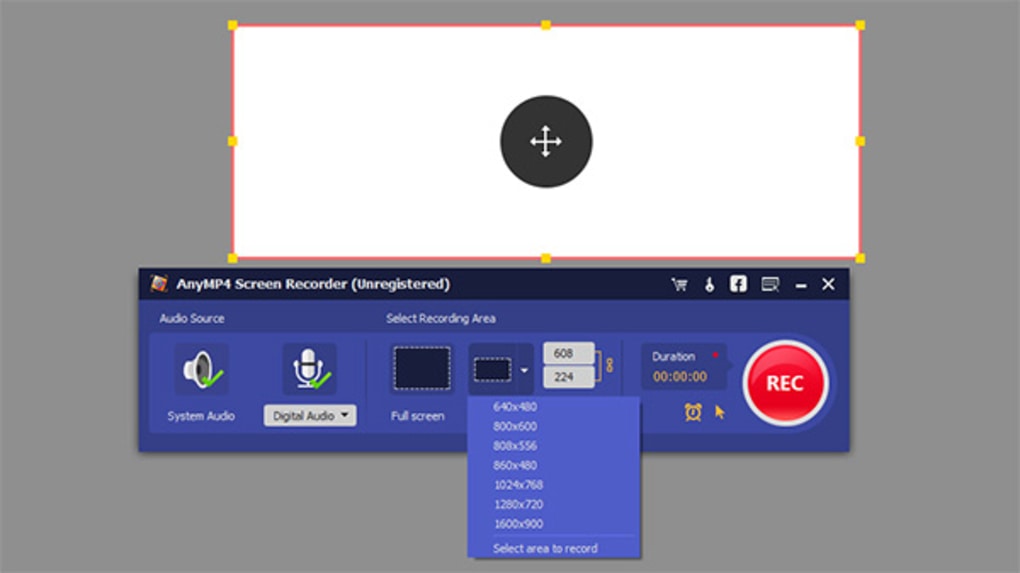
AnyMP4 Screen Recorder is an intuitive and feature-rich application designed to effortlessly capture any activity occurring on your computer screen. Its primary purpose is to provide users with a versatile tool for recording video content, whether it originates from online sources, personal computer operations, or interactive applications. The software prides itself on delivering high-quality output, ensuring that your captured videos are crisp, clear, and professional.
At its core, AnyMP4 Screen Recorder tackles the common challenges associated with screen capture: quality degradation, complex interfaces, and limited customization options. It rises above these issues by offering a streamlined user experience combined with powerful underlying technology. The program allows users to record a vast array of screen activities, including but not limited to streaming videos from popular platforms, intense gaming sessions, critical Skype calls, and insightful online tutorials. This versatility makes it an invaluable asset for a broad spectrum of users, from content creators documenting their work to individuals preserving cherished video calls.
One of the key highlights of AnyMP4 Screen Recorder is its commitment to high-definition output. In an era where visual fidelity is paramount, the software ensures that your recordings maintain excellent quality, even when capturing content with resolutions up to 1920*1080. This dedication to quality extends to audio recording as well, providing options to capture system sounds, microphone input, or both, ensuring a complete auditory experience alongside the visual capture. Its position in the screen recording market is strengthened by its balance of simplicity and advanced features, making it accessible to beginners while offering enough depth for seasoned professionals. Its trial version allows users to explore its capabilities firsthand, underscoring the developer’s confidence in its performance.
II. Comprehensive Recording Capabilities
The true power of AnyMP4 Screen Recorder lies in its comprehensive recording capabilities, which are designed to cater to virtually any screen capture scenario. The software offers unparalleled versatility in the types of content it can capture, ensuring that users are never limited in what they can record from their computer screen. This section will delve into the breadth of content capture and the commitment to high-definition output that defines AnyMP4 Screen Recorder.
A. Versatility in Content Capture
AnyMP4 Screen Recorder is engineered to be an all-encompassing solution for capturing diverse screen activities. Its robust engine can seamlessly record a multitude of sources, making it a Swiss Army knife for digital content preservation and creation.
-
Streaming Videos (YouTube, Metacafe, Vimeo, Yahoo, CBS, etc.): In an age dominated by online media, the ability to record streaming videos is a highly sought-after feature. AnyMP4 Screen Recorder excels in this domain, allowing users to capture content from popular video-sharing platforms like YouTube, Metacafe, Vimeo, Yahoo, and CBS. This is particularly useful for saving lectures, documentaries, news broadcasts, or any video content that may not be available for direct download. The software ensures that the recorded video retains its original quality, providing a faithful reproduction of the online stream. Imagine being able to rewatch an important webinar or educational video offline, at your convenience, without relying on an internet connection or the platform’s specific viewing policies. This functionality empowers users with greater control over their digital media consumption.
-
Games and Gameplay Footage: For the enthusiastic gaming community, AnyMP4 Screen Recorder offers an excellent solution for capturing gameplay. Whether you’re a professional streamer showcasing your skills, a casual player wanting to preserve memorable moments, or a developer creating game previews, the software can record your gaming sessions smoothly. It’s designed to handle the dynamic and often demanding nature of modern video games, ensuring that frame rates remain stable and the visual quality of your gaming experience is accurately reflected in the recording. This means crisp graphics, fluid motion, and synchronized audio, enabling you to produce high-quality gameplay videos for sharing with friends, uploading to platforms like Twitch or YouTube, or for personal review.
-
Communication (Skype Calls, Online Meetings, Webinars): In an increasingly connected world, online communication tools like Skype, Zoom, Microsoft Teams, and Google Meet are integral for both personal and professional interactions. AnyMP4 Screen Recorder provides a crucial function for recording these calls, meetings, and webinars. This feature is invaluable for documenting important discussions, archiving business presentations, reviewing instructional sessions, or even preserving personal video calls with loved ones. By capturing both video and audio, users can revisit the complete interaction, ensuring that no crucial detail is missed. This serves as an excellent reference tool for project management, compliance, or simply for personal memory keeping.
-
Any On-Screen Activity: Beyond specific applications or streaming services, AnyMP4 Screen Recorder is capable of capturing literally any activity that occurs on your computer screen. This broad capability makes it incredibly versatile for various applications. This could include recording software demonstrations for technical support, creating step-by-step tutorials for complex processes, documenting bugs for developers, or simply capturing a sequence of actions on your desktop for personal reference. If it appears on your screen, AnyMP4 Screen Recorder can capture it, providing a flexible tool for a multitude of creative and practical purposes.
B. High-Definition Output
A significant differentiator for AnyMP4 Screen Recorder is its unwavering commitment to high-definition output. In an era where visual quality is often synonymous with professionalism and engagement, the software ensures that recordings are not just functional but also visually appealing.
-
Recording in Resolutions up to 1920*1080 (Full HD): AnyMP4 Screen Recorder supports capturing videos at high resolutions, including the widely popular Full HD standard of 1920*1080. This capability is critical for producing professional-grade content that looks sharp and clear on modern displays. Whether you’re recording a detailed software interface, a high-resolution streaming video, or graphically intensive gameplay, the software maintains the integrity of the original content. This means viewers will experience crisp text, vibrant colors, and fine details, enhancing the overall viewing experience. The ability to capture in such high fidelity is crucial for content creators who need their work to stand out and for professionals who require clear visuals for their presentations or tutorials.
-
Maintaining Quality and Ensuring Smooth Playback: Beyond just resolution, AnyMP4 Screen Recorder focuses on maintaining the overall quality of the recording, including frame rate and color accuracy. It employs efficient encoding algorithms to ensure that the captured video is not only high-resolution but also smooth and free from stuttering or lag. This is particularly important for dynamic content like gameplay or fast-paced tutorials, where dropped frames can significantly detract from the viewing experience. The software is optimized to minimize resource consumption during recording, helping to ensure that your system can handle both the recording process and the application being recorded without significant performance bottlenecks. The result is a high-quality video file that plays back fluidly, providing a seamless and professional viewing experience for any audience.
III. Advanced Customization for Tailored Recordings
One of the defining characteristics of a truly effective screen recording tool is its ability to offer extensive customization options, allowing users to tailor their recordings precisely to their needs. AnyMP4 Screen Recorder excels in this regard, providing a suite of advanced settings for video area selection, audio control, and cursor visibility. These features empower users to create recordings that are not only high-quality but also perfectly suited for their specific purpose.
A. Flexible Video Area Selection
The ability to define and adjust the recording area is fundamental to producing focused and efficient screen captures. AnyMP4 Screen Recorder offers robust options for selecting exactly what part of your screen gets recorded, eliminating unnecessary clutter and ensuring that your audience’s attention is directed to the most important elements.
-
Full-Screen Capture: For scenarios where the entire desktop environment is relevant, AnyMP4 Screen Recorder provides a one-click option for full-screen capture. This is ideal for recording complete software demonstrations, entire online presentations, or general system usage where context from all elements on the screen is important. It simplifies the process, ensuring that every pixel of your display is included in the final video without any manual configuration.
-
Customized Dimensions (e.g., 640480, 800600, 1024*768): Often, only a specific window or a particular section of the screen needs to be recorded. AnyMP4 Screen Recorder addresses this by offering predefined customized dimensions, such as 640480, 800600, or 1024*768. These standard resolutions are useful for specific output requirements, perhaps for web embedding or for creating videos with consistent aspect ratios. Users can simply select one of these options to instantly define their capture area, saving time and ensuring uniformity across multiple recordings.
-
Manual Adjustment of Recording Frames: For ultimate flexibility, the software allows for completely manual adjustment of the recording frame. Users can drag and resize a selection box to precisely define the area they wish to capture. This feature is particularly useful when recording a specific application window that doesn’t fit standard dimensions, or when focusing on a small, dynamic part of the screen. You can fine-tune the frame to exclude desktop icons, taskbars, or other distractions, ensuring that your recording is clean, professional, and tightly focused on the subject matter. This granular control over the capture area is invaluable for creating highly targeted tutorials, software reviews, or demonstrations. The ability to adjust the frame dynamically even after initiating the recording process offers an additional layer of convenience, allowing for on-the-fly modifications to perfect the shot.
B. Precision Audio Control
Audio is a critical component of any video recording, and AnyMP4 Screen Recorder offers precise control over audio sources to ensure your recordings have the perfect soundscape, whether it’s for narration, background music, or system alerts.
-
System Audio (Internal Sound): The software can capture system audio, which includes any sound generated by your computer. This is essential for recording streaming videos, online meetings where participants speak, game audio, or any application-specific sounds. By isolating system audio, you can ensure that the internal sounds of your computer are recorded clearly, without interference from external noise. This is paramount for creating high-fidelity recordings of multimedia content or software operations.
-
Microphone Audio (Narration, Commentary): For educational videos, tutorials, or gameplay commentary, capturing microphone audio is crucial. AnyMP4 Screen Recorder allows users to record their voice through an attached microphone, enabling them to provide narration, explain processes, or offer live commentary. This feature is vital for personalizing recordings and adding an instructive or entertaining layer to the visual content. The software typically offers options to select the specific microphone device if multiple are connected, ensuring the correct input source is used.
-
Option to Record Both Simultaneously: One of the most powerful audio features is the ability to record both system audio and microphone audio simultaneously. This is indispensable for creating professional tutorials or gameplay videos where both the application’s sound (e.g., game music, system alerts, dialogue from a video call) and the user’s commentary are required. The software intelligently mixes these audio streams, providing a synchronized audio track that perfectly complements the video. Furthermore, users often have independent volume controls for system and microphone audio, allowing for fine-tuning of the audio balance to ensure that the narration isn’t drowned out by background sounds or vice-versa. This dual-audio capture capability makes AnyMP4 Screen Recorder an excellent tool for comprehensive content creation.
C. Enhanced Cursor Visibility
For instructional videos, software demonstrations, or any content where user interaction with the screen is key, guiding the viewer’s eye is paramount. AnyMP4 Screen Recorder incorporates features for enhanced cursor visibility, making it easier for your audience to follow along with your actions.
- Highlighting the Cursor: To make the mouse pointer more prominent, especially against busy backgrounds or high-resolution displays, the software offers a cursor highlighting option. This typically involves placing a colored circle or halo around the cursor, making it stand out more clearly. This simple visual cue significantly improves viewer comprehension, as they can effortlessly track where your mouse is pointing at any given moment.
-
Highlighting Clicks for Instructional Videos: Beyond just highlighting the cursor, AnyMP4 Screen Recorder also provides the ability to highlight clicks. This means that every time you click the mouse (left or right), a distinct visual effect appears at the click location. This is incredibly valuable for instructional videos where showing specific clicks is crucial for guiding users through a process. For instance, a small, transient circle or flash can appear where a click occurs, drawing immediate attention to the interaction point. This eliminates ambiguity and ensures that your audience understands precisely which elements you are interacting with on the screen.
-
Options to Enable One or Both: Users have the flexibility to choose whether to enable cursor highlighting, click highlighting, or both, depending on the context of their recording. For a simple demonstration, just a highlighted cursor might suffice. For a detailed tutorial requiring precise instructions, enabling both cursor and click highlights would be ideal. This granular control ensures that the visual cues are helpful without becoming distracting, allowing for tailored viewer guidance.
IV. Optimizing Workflow and Post-Capture Management
A truly effective screen recording tool extends its utility beyond just the act of capturing. It integrates features that streamline the recording process and facilitate efficient management of the captured content. AnyMP4 Screen Recorder incorporates several such capabilities, focusing on optimizing the user’s workflow and providing essential post-capture tools.
A. Streamlined Recording with Hotkeys
Efficiency in screen recording often hinges on quick and intuitive controls, especially when capturing dynamic content or performing live demonstrations. AnyMP4 Screen Recorder addresses this need by offering customizable hotkeys, which significantly streamline the recording workflow.
-
Default Hotkeys (Start/Stop, Pause/Resume, Take Screenshot): The software comes equipped with a set of convenient default hotkeys for the most common recording actions. These typically include keys for “Start/Stop Capture,” allowing users to initiate and conclude a recording session without having to click on the software interface, which might be out of frame or distracting. Similarly, “Pause/Resume Capture” hotkeys are invaluable for temporary interruptions, enabling users to pause a recording and then pick up exactly where they left off, without creating multiple files or needing extensive editing later. Furthermore, a “Take A Screenshot” hotkey is often included, providing an instant way to capture still images of the screen during a recording session or independently, which is excellent for highlighting specific moments or creating supplementary material. These default hotkeys provide a ready-to-use, efficient control scheme for most users.
-
Customizing Hotkeys for Personal Preference: Recognizing that different users have different preferences and keyboard layouts, AnyMP4 Screen Recorder offers the flexibility to customize these hotkeys. If the default key combinations conflict with other applications, are awkward to reach, or simply don’t align with a user’s muscle memory, they can be easily changed. The process is straightforward: users navigate to the “Preference” settings within the software, then select the “Shortcuts” tab. Here, they can input their preferred key combinations for each action. This level of customization ensures that the recording experience is as comfortable and efficient as possible for every individual, allowing them to focus entirely on the content being recorded rather than fumbling with controls. The ability to tailor hotkeys ensures seamless operation and reduces the learning curve for new users, enhancing overall productivity.
B. Instant Preview and Review
The process of recording can sometimes be fraught with uncertainty – did I capture the right area? Is the audio clear? Is the content exactly what I intended? AnyMP4 Screen Recorder mitigates these concerns by providing an instant preview function immediately after a recording session, offering a crucial step in quality control.
-
The Ability to Preview Recordings Immediately After Capture: Once you finish capturing a video, AnyMP4 Screen Recorder doesn’t just save it and move on. Instead, it presents you with an immediate preview window. This allows you to watch the recorded video in its entirety or scrub through specific sections right away. This on-the-spot review is incredibly beneficial for several reasons. Firstly, it provides instant gratification, letting you see the fruits of your labor without opening another media player. Secondly, and more importantly, it serves as a critical quality assurance step. You can quickly check for any issues such as incorrect recording area, audio problems (too low, too loud, or static), visual glitches, or even simply verifying that all the intended content was captured.
-
Ensuring Desired Content and Quality Before Saving: The preview feature empowers users to make informed decisions before committing to saving the file. If an issue is detected during the preview – perhaps the microphone audio was off, or a crucial part of the screen was accidentally left out of the capture area – you have the immediate opportunity to discard the recording and try again. This prevents the frustration of discovering errors much later, after the original source material might no longer be available or easily recreatable. It saves valuable time by avoiding unnecessary editing later on and ensures that only high-quality, relevant videos are saved to your system. This immediate feedback loop is a testament to AnyMP4 Screen Recorder’s user-centric design, prioritizing accuracy and user satisfaction.
C. System Compatibility and Performance
For any software, particularly one that interacts directly with system resources like a screen recorder, compatibility and performance are paramount. AnyMP4 Screen Recorder is built with these considerations in mind, ensuring a smooth and reliable experience for its users.
-
High Compatibility with Windows 10: The reference material explicitly states that AnyMP4 Screen Recorder is “highly compatible with Windows 10.” This is a significant advantage, as Windows 10 is currently the most widely used desktop operating system globally. High compatibility means that users can expect the software to integrate seamlessly with their Windows 10 environment, functioning without unexpected crashes, freezes, or conflicts with other system processes. This optimization for Windows 10 ensures that the software can leverage the OS’s capabilities efficiently, resulting in stable recordings and reliable performance. For users upgrading to newer versions of Windows, this also suggests a forward-looking design that aims for continued compatibility and support.
-
General Performance and Stability: Beyond specific OS compatibility, AnyMP4 Screen Recorder is designed for general performance and stability across the Windows platform. Screen recording can be a resource-intensive task, especially when capturing high-resolution video and multiple audio streams. The software is optimized to minimize its footprint on system resources, allowing for smooth operation even on moderately powerful machines. This optimization helps prevent lag in the recorded video or, more critically, in the application being recorded. A stable recording process means fewer interruptions, fewer corrupted files, and a more consistent output, enhancing the overall user experience. The continuous updates, as evidenced by versions like 1.5.70, often include performance enhancements and bug fixes, further contributing to the software’s reliability and stability over time.
V. Why Choose AnyMP4 Screen Recorder?
When evaluating screen recording software, the sheer number of options can be overwhelming. However, AnyMP4 Screen Recorder distinguishes itself through a potent combination of features that address the core needs of a diverse user base. Choosing this software means opting for a tool that prioritizes quality, flexibility, and user-friendliness.
Summary of Benefits (Ease of Use, Quality, Versatility)
AnyMP4 Screen Recorder bundles a powerful feature set into an accessible package, offering several key advantages:
- Exceptional Ease of Use: From its intuitive interface to its customizable hotkeys, the software is designed for simplicity. Even first-time users can quickly grasp its functionalities and start recording without a steep learning curve. The clear options for selecting capture areas, audio sources, and cursor effects make the process straightforward, eliminating guesswork and frustration. This ease of use is a significant draw for anyone who needs to quickly capture content without delving into complex settings.
- Uncompromising Quality Output: The commitment to high-definition recording, including 1920*1080 resolution, ensures that your videos are professional-grade. Whether you’re capturing crisp text, vibrant graphics, or dynamic gameplay, the visual fidelity is maintained. Coupled with precise audio control, the software delivers a complete high-quality multimedia package, making your recordings suitable for professional presentations, educational content, or high-fidelity sharing.
- Unmatched Versatility: Its ability to record a vast array of content—streaming videos, games, Skype calls, and any on-screen activity—makes it incredibly adaptable. This versatility means you don’t need multiple tools for different recording tasks; AnyMP4 Screen Recorder can handle them all. The flexible video area selection, from full-screen to custom regions, further enhances this adaptability, allowing for highly targeted and relevant captures.
Ideal Use Cases
AnyMP4 Screen Recorder is perfectly suited for a wide range of applications:
- Content Creators: YouTubers, social media influencers, and tutorial makers will find its high-quality capture, audio control, and cursor effects indispensable for producing engaging and informative videos.
- Educators and Students: Recording online lectures, creating instructional materials, demonstrating software features, or even reviewing personal notes become effortless tasks.
- Gamers: Capturing epic gameplay moments, creating walkthroughs, or live-streaming with commentary is made simple and high-quality.
- Business Professionals: Documenting online meetings, recording webinars, creating software demonstrations for clients, or preparing internal training videos are streamlined and efficient.
- Everyday Users: Anyone looking to save a streaming video, record a video call with family, or simply document an issue for tech support will appreciate its straightforward approach.
Availability (Trial Version) and Support
AnyMP4 Screen Recorder is available as a trial version on platforms like PhanMemFree. This allows prospective users to test its capabilities and ensure it meets their specific needs before making a purchase. The trial typically offers full functionality with certain limitations, such as a watermark on recordings or a time limit for each capture, giving a clear understanding of the full product’s potential. The availability of multiple language options, including German, English, French, Japanese, and more, highlights its global reach and user-friendly approach. The consistent updates and ongoing development by AnyMP4 DEMore further ensure that the software remains compatible with the latest Windows versions and continues to evolve with new features and improvements.
The presence of user reviews on platforms like PhanMemFree.org also speaks to its active community and the developer’s engagement with user feedback. This continuous refinement, combined with robust features and a focus on user experience, solidifies AnyMP4 Screen Recorder’s position as a premier choice for anyone needing reliable, high-quality screen capture on Windows.
VI. Conclusion
In conclusion, AnyMP4 Screen Recorder stands out as a robust, versatile, and user-friendly solution for all your screen recording needs on the Windows platform. Its comprehensive suite of features, ranging from flexible video area selection and precise audio control to customizable hotkeys and immediate post-capture previews, is meticulously designed to provide a seamless and high-quality recording experience. Whether you’re a content creator, an educator, a gamer, a business professional, or simply an everyday user looking to capture moments from your screen, AnyMP4 Screen Recorder offers the tools necessary to achieve professional-grade results with remarkable ease.
The software’s commitment to high-definition output, ensuring crisp visuals up to 1920*1080 resolution, combined with its ability to capture both system and microphone audio simultaneously, means that your recordings will be clear, detailed, and engaging. Its high compatibility with Windows 10 further guarantees stable performance and smooth integration into your operating environment. The thoughtful inclusion of features like cursor highlighting and click effects significantly enhances the clarity of instructional videos and demonstrations, making your content more effective and easier to follow.
The availability of a trial version on reputable platforms like PhanMemFree allows users to explore its extensive capabilities firsthand, reinforcing confidence in its performance and value. This proactive approach, coupled with ongoing updates and a focus on user experience, solidifies AnyMP4 Screen Recorder’s position as a leading screen capture utility. For anyone seeking a powerful yet intuitive tool to record any activity on their computer screen, AnyMP4 Screen Recorder offers an compelling solution that truly empowers users to capture, create, and share their digital world with clarity and precision. It’s an investment in efficiency and quality that pays dividends in every recorded moment.
File Information
- License: “Trial version”
- Latest update: “June 23, 2025”
- Platform: “Windows”
- OS: “Windows 10”
- Language: “English”
- Downloads: “2.3K”
- Size: “2.23 MB”


