Dead Pixel Buddy is a free, lightweight Windows application designed to quickly and efficiently detect dead or stuck pixels on your monitor. This straightforward tool simplifies the process of identifying display imperfections, allowing users to assess the health of their screen with minimal effort and technical expertise. The application’s ease of use, coupled with its speed and effectiveness, makes it an invaluable asset for anyone seeking to maintain optimal display quality. Whether you’ve just purchased a new monitor and want to ensure it’s free of defects or you’re experiencing visual anomalies on your current screen, Dead Pixel Buddy offers a convenient and reliable solution.
Understanding Dead and Stuck Pixels: The Problem and the Solution
Before delving into the specifics of Dead Pixel Buddy, let’s understand the issue it addresses. Dead pixels are individual pixels on a display that fail to illuminate, permanently displaying a single color (usually black) regardless of the image displayed. Stuck pixels, on the other hand, are pixels that remain fixed on a particular color, even when the surrounding pixels change. Both dead and stuck pixels detract from the viewing experience, especially on higher-resolution displays where even a single faulty pixel can be noticeable.
While some minor pixel imperfections may be tolerable, numerous or prominently located dead or stuck pixels can significantly impact visual quality, particularly for professional applications like graphic design or video editing. Traditional methods for detecting these issues often involve complex and time-consuming procedures. Dead Pixel Buddy streamlines this process, providing a user-friendly alternative that quickly and easily identifies problem areas.
The program’s efficiency stems from its simple yet effective approach. Rather than relying on complex algorithms or image processing techniques, Dead Pixel Buddy uses a straightforward method: displaying solid colors across the entire screen. By presenting uniform color fields (black, white, red, green, and blue are standard options), it becomes immediately apparent if any pixels deviate from the expected color, revealing their faulty status. This visual approach allows for quick identification, eliminating the need for extensive technical knowledge.

How Dead Pixel Buddy Works: A Step-by-Step Guide
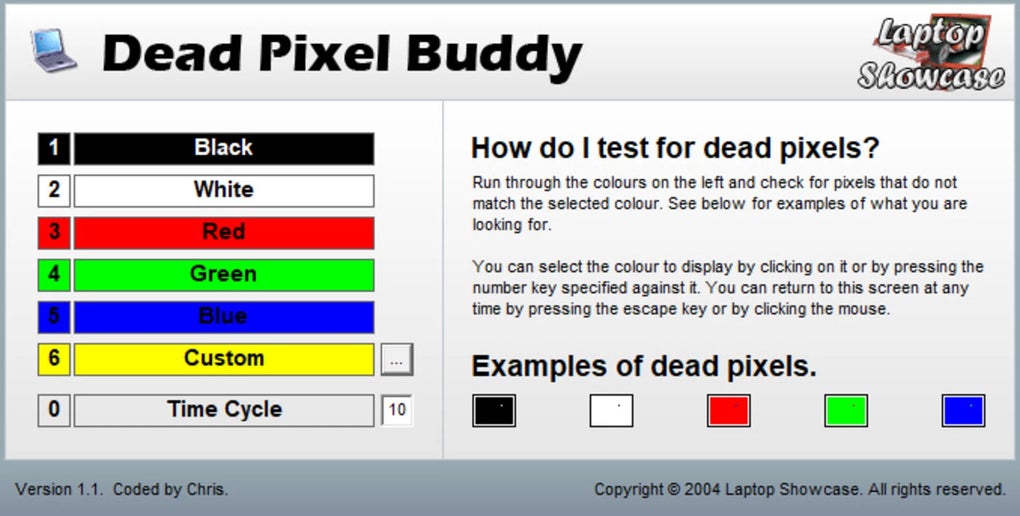
Dead Pixel Buddy’s user interface is exceptionally intuitive, requiring minimal interaction. The application’s core functionality revolves around the display of solid color screens, facilitating easy pixel identification. Upon launching the program, users are presented with a simple set of options, allowing for customization of the color used to test the display.
The process is as follows:
-
Download and Launch: Download the Dead Pixel Buddy executable from a trusted source and launch the application. Note that Dead Pixel Buddy is a portable application, meaning it doesn’t require installation. This further simplifies the process, allowing for immediate use without system modifications.
-
Color Selection: Choose a solid color to fill the screen. Dead Pixel Buddy typically offers preset options, including black, white, red, green, and blue. These colors are selected strategically to highlight different types of pixel defects. Black is particularly useful for identifying bright stuck pixels, while white is effective for spotting dark dead or stuck pixels. Red, green, and blue offer supplementary testing to cover a wider range of potential problems.
-
Screen Fill: Once a color is selected, Dead Pixel Buddy will fill the entire screen with that color. The process is instantaneous and seamless, ensuring a swift and efficient scan. Take your time to examine the display for any pixels that fail to match the selected color.
-
Pixel Identification: Any deviation from the selected uniform color indicates a potential dead or stuck pixel. Dead pixels will appear as a permanently different color or a dark spot against the solid background, while stuck pixels will retain a color different from the surrounding pixels.
-
Repeat with Different Colors: Repeat the process with different colors for comprehensive testing. As mentioned earlier, different colors may highlight different types of defects. Utilizing multiple colors significantly increases the accuracy of detecting pixel issues.
Features and Benefits: Why Choose Dead Pixel Buddy?
Dead Pixel Buddy stands out from other potential solutions due to its combination of user-friendly design, efficiency, and lack of reliance on system resources. Its key advantages include:
-
Simplicity and Ease of Use: The intuitive interface and straightforward process make Dead Pixel Buddy accessible to users of all technical skill levels. The program requires no prior experience with hardware diagnostics or image processing techniques.
-
Speed and Efficiency: The application quickly fills the screen with a solid color, providing an immediate visual assessment. This rapid analysis minimizes the time required to check for dead or stuck pixels.
-
Portability and No Installation: Dead Pixel Buddy is a portable application, requiring no installation. This eliminates the need to install the application onto the operating system, thereby saving disk space and avoiding potential conflicts with other software.
-
Multiple Color Options: The inclusion of multiple color options improves the accuracy of pixel defect detection, as different colors may reveal defects that would otherwise go unnoticed. This comprehensive approach enhances the reliability of the diagnostic process.
-
Free and Open Source: The application is usually freely available, making it accessible to a wider audience without any financial barriers.
Alternatives and Comparisons: Exploring Other Options
While Dead Pixel Buddy provides a simple and efficient solution, other alternatives exist for detecting dead pixels. Some of these options include online tools and more advanced diagnostic software. However, these alternatives often lack the simplicity and ease of use offered by Dead Pixel Buddy. Online tools may require internet connectivity and could potentially compromise security. More advanced software typically includes more complex features and may require greater technical expertise.
Dead Pixel Buddy’s advantage lies in its streamlined approach, focusing solely on the core function of dead pixel detection without unnecessary complexities. This straightforward design makes it significantly easier and faster to use compared to alternative methods.
Conclusion: Dead Pixel Buddy – A Must-Have Tool for Display Maintenance
Dead Pixel Buddy offers a simple yet powerful solution for detecting dead or stuck pixels on a monitor. Its ease of use, speed, and portability make it an invaluable tool for anyone seeking to maintain optimal display quality. The program’s straightforward approach, focusing solely on the essential function of pixel detection, sets it apart from more complex alternatives. Whether you’re a seasoned tech enthusiast or a casual user, Dead Pixel Buddy is a valuable addition to your digital toolkit. Its ability to quickly and reliably identify display defects ensures peace of mind and helps maintain the quality of your viewing experience. By utilizing Dead Pixel Buddy, users can proactively address potential display issues, ensuring a consistently satisfying visual performance from their monitors.
File Information
- License: “Free”
- Version: “1.1”
- Latest update: “June 17, 2024”
- Platform: “Windows”
- OS: “Windows 11”
- Language: “English”
- Downloads: “409”
- Size: “26.67 KB”