
In the digital age, multimedia content reigns supreme, but sometimes, the visual component isn’t what we need. Imagine having a favorite song stuck in a concert video, a crucial dialogue embedded in a film clip, or an insightful lecture saved as a video file, when all you truly desire is the audio. This is where a dedicated Free Video to Audio Converter becomes an indispensable tool. Designed for simplicity and efficiency, the PhanMemFree Free Video to Audio Converter stands out as a robust solution for anyone looking to effortlessly extract high-quality audio from their video library.
This comprehensive guide will delve into the capabilities, benefits, and user experience of this exceptional free software. We’ll explore how it transforms complex video files into various accessible audio formats, catering to both casual users and those with more specific needs. From its intuitive interface to its flexible conversion options, discover why the PhanMemFree Free Video to Audio Converter is the go-to utility for all your video-to-audio conversion requirements.
Unleashing the Power of Audio: What is Free Video to Audio Converter?
At its core, the Free Video to Audio Converter is a purpose-built application designed to perform a singular, yet incredibly useful, function: extracting audio tracks from video files. This isn’t just about stripping out a soundtrack; it’s about transforming multimedia content into a more versatile and manageable audio-only format. Whether you’re aiming to create custom ringtones, compile a playlist of background music from various sources, save spoken word content for listening on the go, or simply archive sound snippets, this converter provides the means to do so with remarkable ease.
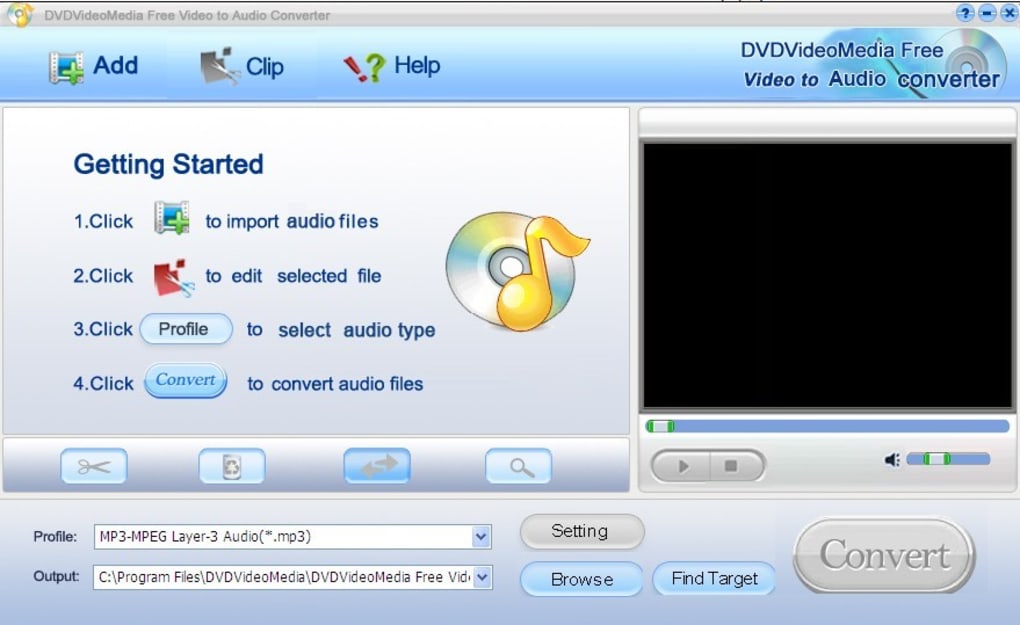
Upon launching the PhanMemFree Free Video to Audio Converter, users are greeted with an interface that prioritizes clarity and functionality. There are no confusing menus, no overwhelming array of buttons, just a clean layout that guides you through the conversion process. This intentional design choice ensures that even individuals with minimal technical expertise can navigate the software confidently. The primary objective is to make the act of converting video to audio as straightforward as possible, eliminating any unnecessary hurdles that often come with more complex multimedia tools.
The software acts as a digital bridge, allowing content trapped within video containers to flow freely into pure audio files. It’s a liberation for sound, enabling it to exist independently, ready to be played on MP3 players, integrated into audio projects, or simply saved to conserve disk space when the video stream isn’t needed. This utility embodies the principle of “less is more,” focusing on delivering its core functionality flawlessly and without added complexity.
A Closer Look at its Flexible Features and Capabilities
While the PhanMemFree Free Video to Audio Converter prides itself on simplicity, it does not compromise on functionality. Beneath its user-friendly exterior lies a powerful engine capable of handling a diverse range of video and audio formats, alongside offering crucial customization options that empower users to tailor their output precisely to their needs. This balance of ease of use and effective performance is what truly sets it apart.
Broad Format Compatibility and Output Options
One of the most significant strengths of the Free Video to Audio Converter is its extensive compatibility with various media formats. This ensures that almost any video file you possess can be processed. The software is designed to gracefully handle common video formats such as:
- AVI: Audio Video Interleave, a widely used format.
- MPEG: Moving Picture Experts Group, encompassing various standards like MPEG-1, MPEG-2.
- VOB: Video Object, typically found on DVD-Video media.
- WMV/ASF: Windows Media Video and Advanced Systems Format, Microsoft’s proprietary formats.
- DAT: Digital Audio Tape, often associated with VCDs.
- RM/RMVB: RealMedia and RealMedia Variable Bitrate, used by RealPlayer.
- MOV: QuickTime File Format, commonly used by Apple products.
This broad input support means you won’t usually encounter a video file that the converter can’t handle. Once the video is loaded, the true power of the converter comes into play with its flexible output options. Users aren’t limited to a single audio format; instead, they can choose from several popular and widely supported audio formats, ensuring compatibility with virtually any device or player:
- MP3: MPEG-1 Audio Layer 3, the ubiquitous standard for digital audio, known for its good compression and widespread compatibility.
- WAV: Waveform Audio File Format, uncompressed audio, often used for professional audio editing or when CD quality is desired.
- WMA: Windows Media Audio, another Microsoft-developed format, offering good compression with quality.
- OGG: Ogg Vorbis, an open-source, free audio compression format often comparable to MP3.
Beyond basic format conversion, the PhanMemFree Free Video to Audio Converter also offers granular control over the output audio. Users can adjust parameters such as the frame rate and file size. While “frame rate” typically pertains to video, in the context of audio extraction, this might refer to the audio bitrate or sample rate, allowing for a balance between audio quality and file size. Reducing the file size can be particularly useful for mobile devices or when storage space is a concern, while maintaining higher quality is paramount for critical listening or professional use. The ability to modify these elements empowers users to fine-tune the conversion process to meet their exact specifications. Furthermore, the underlying technology from DVDVideoMedia even suggests the possibility of merging video files into a larger movie file (in AVI/DivX, MPEG I/II, WMV/ASF format) before extraction, though the primary focus remains on extracting audio from existing video sources. This flexibility makes it a versatile tool for various audio archiving and playback scenarios.
Batch Processing for Efficiency
In today’s fast-paced world, efficiency is key, especially when dealing with multiple files. The PhanMemFree Free Video to Audio Converter excels in this regard by offering robust batch processing capabilities. Unlike converters that require users to process one file at a time, this software allows you to upload and queue an unlimited number of video files for conversion simultaneously.
This feature is a significant time-saver for anyone with a large collection of videos from which they need to extract audio. Whether you’re converting an entire season of a TV show into an audio-only podcast format or extracting music from dozens of concert clips, the batch processing function streamlines the entire workflow.
Moreover, the converter goes a step further by allowing users to decide the order of conversion. This priority-setting mechanism is invaluable. If you have certain critical videos that need immediate audio extraction, you can place them at the top of the queue, ensuring they are processed first. The software will then diligently work through the list, converting each video file sequentially. While converting a large group of files may naturally take some time depending on your system’s specifications and the file sizes, the ability to set priorities ensures that your most important tasks are completed without delay. This thoughtful addition enhances user control and significantly boosts productivity, making the Free Video to Audio Converter a powerful ally for managing extensive media libraries.
Streamlined User Experience: Intuitive Design for Everyone
The true mark of excellent software is its ability to deliver powerful functionality within an accessible and intuitive framework. The PhanMemFree Free Video to Audio Converter embodies this philosophy, offering a user experience that is both simple and highly effective. Its design is intentionally minimalistic, ensuring that users can focus on the task at hand without being distracted or overwhelmed by unnecessary complexities.
Simplicity from the First Launch
From the moment you launch the PhanMemFree Free Video to Audio Converter, its commitment to simplicity is evident. The interface is clean, uncluttered, and logically organized. For new users, the software even provides a quick and straightforward tutorial when first launched, offering a brief overview of its core functions and how to navigate them. This initial guidance helps alleviate any potential apprehension, allowing users to jump right into their conversion tasks.
The visual design features only a few essential icons, each clearly representing its function (e.g., adding files, starting conversion). There are no obscure options or nested menus that could complicate the process. This minimalist approach not only makes the software easy to learn but also speeds up the workflow for experienced users. The design philosophy is clear: provide exactly what’s needed for efficient video-to-audio conversion, and nothing more.
A critical component of this intuitive design is the large preview window. This feature allows users to play their imported videos directly within the application. This is incredibly useful for verifying that the correct video files have been loaded before initiating the conversion process. It eliminates guesswork and reduces the chances of converting the wrong content, saving time and effort.
At the very bottom of the interface, users will find convenient dropdown menus for selecting the desired audio file format (MP3, WAV, WMA, OGG) and specifying the output folder. These options are readily accessible and straightforward to use, allowing for quick adjustments without delving into complicated settings panels. This streamlined layout ensures that selecting output preferences is as easy as choosing the input files.
Hassle-Free Operation and Performance
The PhanMemFree Free Video to Audio Converter is engineered for reliable, hassle-free performance. It promises to get the job done efficiently and without unnecessary complications, making it a truly dependable utility for anyone needing to extract audio from videos. The software operates smoothly, executing conversions without freezing or crashing, which is a common frustration with less stable converters.
While converting a large batch of video files can inherently take time, the converter manages this process effectively. Its ability to let users choose the order of priority for conversions means that even in lengthy tasks, the most important audio extractions are handled first. This level of control, combined with the software’s stability, ensures that your conversion projects progress as intended, yielding the desired results without constant supervision or intervention.
Ultimately, the Free Video to Audio Converter delivers on its promise: it is a helpful tool designed to convert video to audio quickly and easily. Its straightforward nature means there’s no steep learning curve, and its robust performance ensures that conversions are completed reliably. This makes it an ideal choice for a wide audience, from casual users who occasionally need to extract audio to more regular users with extensive media conversion needs. The focus on a hassle-free experience permeates every aspect of its design and operation.
Why Choose Free Video to Audio Converter? Pros, Cons, and Technical Insights
When evaluating any software, understanding its strengths, limitations, and underlying specifications is crucial. The PhanMemFree Free Video to Audio Converter, while simple, offers a compelling package for its target audience. Examining its pros and cons, alongside its technical details, paints a complete picture of its value.
Advantages and Disadvantages at a Glance
Choosing the right tool often comes down to weighing its benefits against its drawbacks. For the Free Video to Audio Converter, the list of advantages strongly supports its use for straightforward audio extraction.
Pros:
- Easy to Use: This is perhaps its greatest strength. The intuitive interface and minimal options mean anyone can pick it up and start converting without prior experience or extensive tutorials. This ease of use makes it highly accessible.
- Select Order and Priority Videos for Conversion: For users dealing with multiple files, the batch processing feature combined with the ability to set a conversion queue and prioritize specific videos is a significant advantage, saving time and ensuring critical tasks are handled first.
- Change Framerate and File Size: While perhaps referring to audio bitrate and sample rate in this context, the flexibility to adjust these parameters allows users to balance output audio quality with file size, catering to different needs such as optimizing for mobile devices or preserving high fidelity.
- No Tutorial Needed (or Quick & Simple): The inherent simplicity of the design means that users can often figure it out on their own, or quickly grasp the functions via the brief initial guide, removing a common barrier to entry for new software.
Cons:
- No Advanced Features: This is the primary limitation. Unlike some professional-grade multimedia suites, this converter doesn’t offer complex audio editing capabilities (e.g., cutting, merging audio tracks, applying effects), video editing functions, or highly granular control over encoding parameters. While this contributes to its ease of use, it means users requiring such advanced functionalities would need supplementary software. However, for its intended purpose—simple video to audio conversion—this isn’t a true drawback but rather a design choice to maintain simplicity and focus.
For the vast majority of users who simply need to extract audio quickly and efficiently, the “lack of advanced features” is a non-issue. The software excels at its specific niche, making it an excellent choice for straightforward conversions.
App Specifications and System Requirements
Understanding the technical foundation of the PhanMemFree Free Video to Audio Converter reinforces its accessibility and reliability. The official specifications provided by DVDVideoMedia highlight its lightweight nature and broad compatibility:
- License: Free. This is a significant advantage, as users can benefit from its capabilities without any financial investment.
- Version: 2022.12.1 (Latest Update: July 11, 2023). This indicates ongoing maintenance and updates, suggesting the software is kept current with system requirements and potential bug fixes.
- Platform: Windows.
- OS Compatibility: Windows 95 and above. This remarkably wide compatibility ensures that even users on older operating systems can utilize the software, making it accessible to a very broad user base.
- Language: English. The interface and documentation are in English, making it accessible to a global audience.
- Downloads: With 60.7K total downloads and 193 last month’s downloads (as of reference data), it shows a consistent user base.
- Size: A mere 5.54 MB. This extremely small footprint means it downloads quickly, installs rapidly, and consumes minimal system resources, making it ideal for systems with limited storage or memory.
- Developer: DVDVideoMedia.
- Security Status: Clean. PhanMemFree.org, like its predecessor, ensures that all hosted files are scanned using leading antivirus services, providing assurance that the software is free from malware or unwanted bundled programs.
These specifications confirm that the Free Video to Audio Converter is a lean, mean, audio-extracting machine, designed to run efficiently on a wide range of Windows systems without imposing heavy demands.
Real-World Applications and Use Cases
The utility of a free video to audio converter extends across numerous practical scenarios, making it an invaluable tool for various users. Here are some common real-world applications:
- Music Extraction: One of the most common uses is extracting background music or specific songs from concert footage, music videos, or even personal recordings. This allows users to enjoy the audio independently on any music player.
- Podcast Creation from Video Lectures: Students or professionals can convert educational videos, webinars, or conference talks into audio-only podcasts, making it easier to listen and learn while commuting, exercising, or performing other tasks.
- Dialogue or Quote Collection: Film enthusiasts might want to extract specific lines of dialogue or memorable quotes from movies and TV shows for personal use, creative projects, or simply for archiving.
- Creating Custom Ringtones and Notifications: Short audio clips extracted from videos can be easily trimmed and used as unique ringtones or notification sounds for mobile devices.
- Archiving Sound Effects: Video game developers, content creators, or hobbyists can extract unique sound effects or ambiance from video clips for use in their projects.
- Transcribing Audio: By separating the audio from the video, transcription becomes more focused and potentially easier, especially if the video component is distracting.
- Saving Storage Space: If the visual element of a video is no longer needed, converting it to an audio file significantly reduces its size, freeing up valuable storage space on devices or cloud services.
- Burning Audio CDs: For those who prefer physical media, extracting audio to high-quality WAV files makes it simple to burn custom audio CDs for car stereos or home music systems.
These diverse applications highlight the versatility of the PhanMemFree Free Video to Audio Converter, proving it to be much more than a simple conversion tool; it’s a gateway to unlocking the audio potential hidden within your video files.
Getting Started: A Quick Guide to Converting Your Videos
Using the PhanMemFree Free Video to Audio Converter is designed to be a remarkably straightforward process. Even if you’re a first-time user, you’ll find the steps intuitive and easy to follow. Here’s a simple guide to get you started on converting your video files to audio:
-
Download and Install the Software:
- First, visit PhanMemFree.org and locate the “Free Video to Audio Converter” page.
- Click on the “Free Download for Windows” button.
- Once the download is complete (it’s a small file, usually under 6 MB), locate the installer file (e.g.,
dvdvideomedia-free-video-to-audio-converter-setup.exe) in your downloads folder. - Double-click the installer and follow the on-screen prompts. The installation process is quick and typically requires minimal input.
-
Launch the Application:
- After successful installation, you can launch the Free Video to Audio Converter from your desktop shortcut or through the Start Menu.
- Upon the first launch, you might encounter a quick tutorial window. Take a moment to read it, or simply close it if you prefer to dive right in.
-
Add Your Video Files:
- The main interface will appear. Look for a button like “Add File(s)” or a large ‘+’ icon. Click on it.
- A file explorer window will open. Navigate to the location on your computer where your video files are stored.
- Select one or multiple video files (e.g., AVI, MPEG, WMV, MOV). You can select multiple files by holding down the
Ctrlkey and clicking on each file, or by holdingShiftto select a range. - Click “Open” to add them to the converter’s list.
- You’ll see your selected video files populate the main window. There’s also a preview pane where you can play the video to ensure you’ve selected the correct file.
-
Arrange and Prioritize (for Batch Conversions):
- If you’ve added multiple videos, they will appear in a list. The converter allows you to change their order. Look for “Move Up” and “Move Down” buttons, or similar arrow icons.
- You can arrange the list to prioritize which videos are converted first. This is particularly useful for large batches where some audio extractions are more urgent than others.
-
Select Output Audio Format and Destination Folder:
- At the bottom of the interface, you’ll find dropdown menus.
- Output Format: Click on the dropdown menu labeled “Output Format” (or similar) and choose your desired audio format: MP3, WAV, WMA, or OGG. MP3 is generally the most common and compatible choice.
- Output Folder: Next, click on the “Output Folder” (or “Browse”) button to select where you want your converted audio files to be saved on your computer. It’s a good practice to create a dedicated folder for your converted audio.
-
Adjust Settings (Optional):
- Depending on the version, you might find options to adjust the “framerate” (which often refers to audio quality/bitrate in this context) or “size” for your output audio. If you’re unsure, the default settings are usually a good balance of quality and file size. For higher quality, you might choose a higher bitrate; for smaller files, a lower bitrate.
-
Start the Conversion:
- Once everything is set up, click the “Convert” or “Start” button (often a large button at the bottom or top of the interface).
- The converter will begin processing your video files. A progress bar will indicate the status of the conversion. The time taken will vary based on the video file size, your chosen output settings, and your computer’s processing power.
-
Access Your Converted Audio:
- After the conversion is complete, the software might notify you or automatically open the output folder.
- Navigate to your chosen output folder, and there you will find your newly extracted audio files, ready for playback, editing, or sharing.
That’s it! With these simple steps, you can efficiently transform any video file into a standalone audio track using the PhanMemFree Free Video to Audio Converter. Its intuitive workflow ensures that you spend less time figuring out the software and more time enjoying your extracted audio content.
Conclusion
The PhanMemFree Free Video to Audio Converter stands as a testament to the idea that powerful functionality doesn’t have to come at the expense of simplicity. In a digital landscape often cluttered with complex, feature-laden software, this converter offers a refreshing, streamlined approach to a common multimedia task: extracting audio from video files.
We’ve explored its remarkable versatility in handling a wide array of video input formats and its flexibility in converting them into universally compatible audio formats like MP3, WAV, WMA, and OGG. Its efficient batch processing capabilities, coupled with the ability to prioritize conversions, make it an invaluable asset for managing extensive media libraries. The user experience is further enhanced by an intuitive interface, a helpful preview window, and accessible output options, ensuring that even novice users can achieve professional-grade results without a steep learning curve.
While it intentionally foregoes advanced editing features to maintain its core simplicity, this design choice positions it perfectly for anyone seeking a reliable, hassle-free solution. Its lightweight nature, broad Windows compatibility, and the assurance of being a “Clean” and free application from PhanMemFree.org make it an attractive and dependable choice.
Whether you’re looking to compile a playlist of your favorite concert performances, create audio versions of educational lectures, extract unique sound effects, or simply save storage space by archiving audio-only content, the PhanMemFree Free Video to Audio Converter is the tool for the job. It empowers you to unlock the auditory potential of your video collection, transforming them into accessible and versatile sound files ready for any purpose. Download it today from PhanMemFree.org and experience the ease and efficiency of seamless video-to-audio conversion.
File Information
- License: “Free”
- Latest update: “July 11, 2023”
- Platform: “Windows”
- OS: “Windows 95”
- Language: “English”
- Downloads: “60.8K”
- Size: “5.54 MB”


