
Latency, that frustrating delay between your action and its on-screen response, can ruin online gaming and application experiences. Latency Optimizer, a Windows-based application, aims to alleviate this problem by optimizing various system settings to minimize network lag. This in-depth review examines its features, capabilities, and effectiveness, comparing it to similar tools available on the market.
How Latency Optimizer Works: A Multi-Pronged Approach
Latency Optimizer tackles network latency from multiple angles. It doesn’t focus on a single solution but rather employs a layered approach, targeting different aspects of your system’s configuration and performance. These key areas include:
-
Network Service Optimization: The program adjusts various network services running on your Windows operating system. These services, while essential for many functions, can sometimes consume excessive bandwidth or introduce latency. Latency Optimizer identifies and optimizes these services, prioritizing network-related tasks to improve overall performance. The exact nature of these optimizations isn’t explicitly detailed within the free version, a drawback we will discuss later.
-
Windows Registry Tweaks: The Windows Registry is a vast database containing settings for virtually every aspect of your operating system. Improperly configured registry entries can negatively impact performance, including network speed. Latency Optimizer meticulously scans the registry, identifying and adjusting entries that could contribute to latency. Again, the specific registry modifications remain undisclosed in the free version, potentially causing concern for users who prefer transparency.
-
Network Device Configuration: Your network adapter (e.g., Wi-Fi or Ethernet card) plays a critical role in your internet connection. Latency Optimizer analyzes your network adapter’s configuration, looking for suboptimal settings that might cause bottlenecks. This includes factors like power management settings that could throttle network performance to conserve energy. The optimization process here is geared toward ensuring the network adapter operates at its peak efficiency.
-
Integrated Speed Test: Accurate assessment is vital before and after optimization. The software includes a built-in speed test tool that measures both upload and download speeds. This allows users to benchmark their internet connection’s performance before applying optimizations and then compare the results afterward to quantify the improvement. This feature provides valuable data to evaluate the efficacy of the tool’s adjustments.
Features Beyond Latency Reduction: A Multi-Tool Approach
Latency Optimizer isn’t solely focused on reducing latency. It bundles several additional system utility tools, expanding its functionality beyond its core purpose. These additional features include:
-
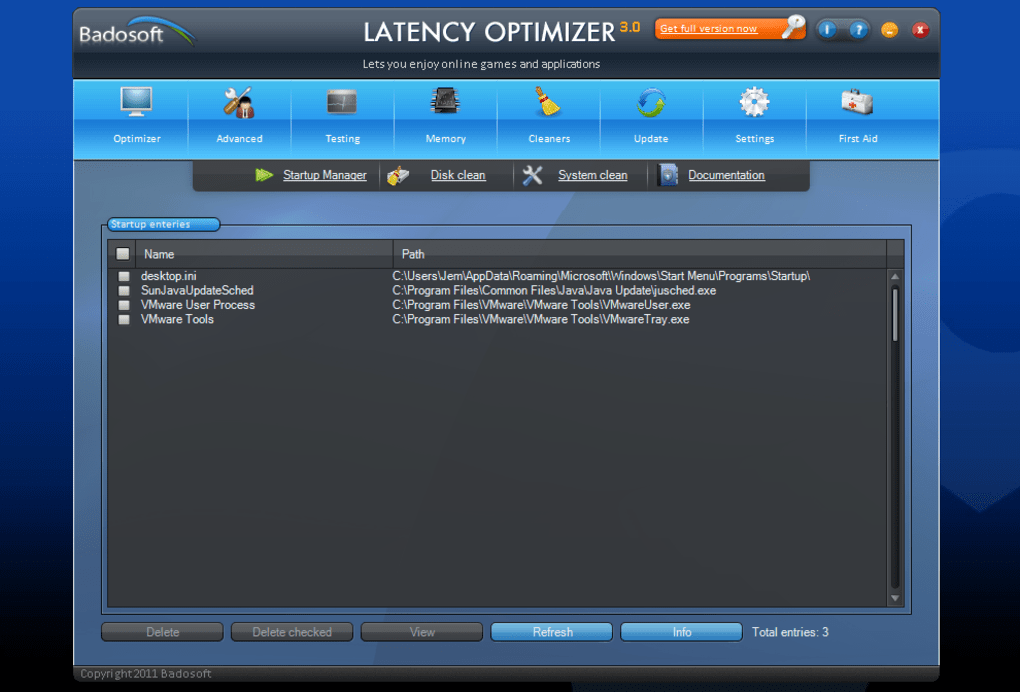
RAM Memory Management: The program can help free up RAM (Random Access Memory), crucial for overall system performance. By identifying and closing unnecessary processes consuming excessive RAM, Latency Optimizer aims to improve system responsiveness and reduce the strain on your computer’s resources. This indirect approach can indirectly benefit network performance by preventing resource contention that might impact network throughput.
-
Active Process Management: The program provides a means to manage currently active processes. Users can review which applications are running, their resource consumption (CPU and RAM usage), and decide to close unnecessary processes to optimize system performance. This feature allows for a degree of manual control over system resources, supplementing the automated optimizations.
-
System Cleaner: A system cleaner component resembles utilities like CCleaner, helping remove temporary files and other system traces. Removing unnecessary files can free up disk space and improve overall system efficiency, albeit indirectly influencing network performance. The system cleaner function adds a layer of housekeeping, beneficial for overall system health.
User Experience and Interface: Ease of Use vs. Lack of Transparency
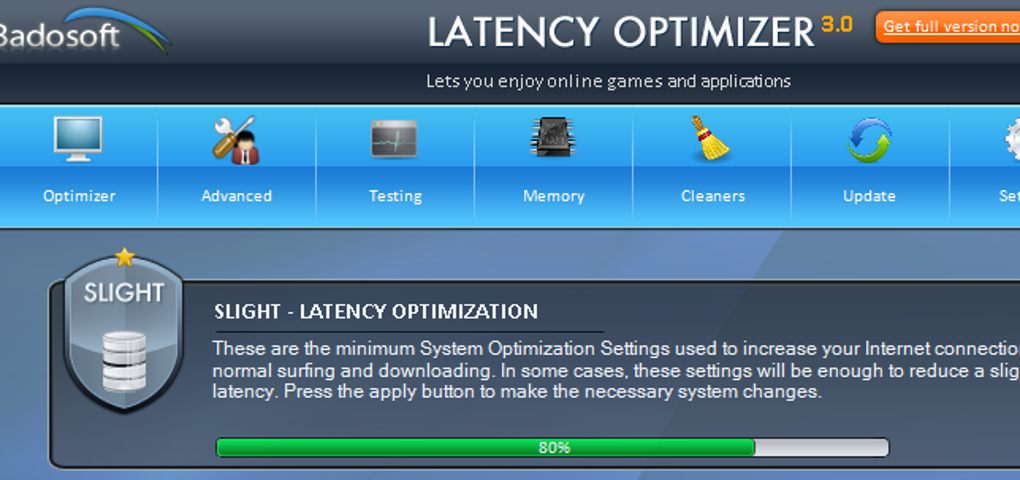
Latency Optimizer boasts a user-friendly interface. Its three optimization profiles (only one available in the free version) simplify the optimization process to a single click. However, this simplicity comes at the cost of transparency. The program doesn’t offer detailed information about the changes applied to the system. This lack of transparency can be a major drawback for users who value understanding the underlying mechanisms or prefer more granular control over the optimization process. Experienced users may find this opaque approach unsettling, preferring tools that clearly document the modifications made to the system.
Performance and Effectiveness: Real-World Impact and Limitations
Anecdotal evidence suggests Latency Optimizer can improve online gaming and application performance for some users. Reviews mention noticeable reductions in lag and improved responsiveness. However, the program’s effectiveness can vary greatly depending on the specific cause of latency. For instance, it might be highly effective in addressing latency issues stemming from inefficient system settings or resource conflicts. It’s less likely to provide significant improvements when the problem originates from external factors like network congestion or ISP limitations. The program’s reliance on general system optimizations, rather than a targeted approach to specific network protocols, limits its effectiveness in complex networking scenarios.
Comparison with Alternative Solutions: Finding the Right Tool
Several alternative applications address latency and network optimization. Some notable examples include:
-
SG TCP Optimizer: This free tool focuses on configuring TCP/IP settings for optimal network performance. It allows for more granular control than Latency Optimizer but requires a deeper understanding of networking concepts.
-
iNetFusion: A more advanced tool offering multiple internet connection management and optimization features. However, it’s a commercial product, unlike the free Latency Optimizer.
-
TCP-Z: This free utility offers a detailed view of your TCP/IP connection and helps identify potential issues. It’s primarily a diagnostic tool, less focused on automated optimizations than Latency Optimizer.
Choosing the right tool depends on user expertise and specific needs. Latency Optimizer’s simplicity is its strength for novice users, while power users may prefer the more advanced options providing greater control and transparency.
Pricing and Availability: A Free Option with Limitations
Latency Optimizer is available in a free version, offering a single optimization profile and the additional utility tools mentioned earlier. The free version provides a good starting point to evaluate the software’s effectiveness. However, the limited profile options might not be sufficient for all users. While pricing details for premium versions are not explicitly given in the provided text, one can infer that a paid version would unlock additional profiles with potentially more aggressive optimization strategies and a broader range of configuration tweaks.
Conclusion: A Useful but Limited Tool
Latency Optimizer is a useful tool for users experiencing moderate latency issues and who prefer a simple, one-click solution. Its bundled utility features enhance its value, providing additional system optimization capabilities. However, the lack of transparency concerning the modifications it applies to the system is a significant drawback. Moreover, its effectiveness is limited by its general approach to system optimization; it may not be as effective against complex or external causes of network latency. Users should carefully consider their technical skills and the specific source of their latency issues before choosing Latency Optimizer over more advanced, albeit potentially more complex, alternative solutions. The free version provides a safe way to explore its features, but users should be aware of its limitations. The lack of extensive documentation about the changes it performs on the system might make more tech-savvy users wary, although this is a common aspect of many “one-click” optimization tools.
File Information
- License: “Free”
- Latest update: “March 12, 2019”
- Platform: “Windows”
- OS: “Windows XP”
- Language: “English”
- Downloads: “49.3K”
- Size: “7.68 MB”


