
Microsoft Remote Desktop is a powerful and versatile application that allows users to access and control a remote computer from virtually anywhere in the world. Whether you’re an IT professional managing a network of machines, a remote worker needing access to your office desktop, or a business with geographically dispersed employees, Microsoft Remote Desktop provides a secure and efficient solution for seamless remote connectivity. Initially developed for Windows, this robust application is now readily available for Mac users, offering the same intuitive interface and powerful features across platforms. This comprehensive guide explores the capabilities, features, and benefits of Microsoft Remote Desktop for Mac, covering everything from its core functionality to its integration with Microsoft 365 and considerations for system requirements.
Understanding Remote Desktop Technology
Before diving into the specifics of Microsoft Remote Desktop, it’s essential to understand the broader concept of remote desktop technology. A remote desktop, in its simplest form, is a system that enables a user to connect to and interact with a computer or server from a different location. This interaction is not limited to simply viewing the screen; users can fully control the remote machine, accessing files, running applications, and performing any task they could if they were physically sitting in front of it. The term “desktop” is somewhat anachronistic, as remote access can extend to various devices, including servers, smartphones, and other computing platforms. The core functionality is the ability to establish a secure connection and interact with the resources of a distant machine. This technology has revolutionized remote work, IT management, and countless other applications where remote access is crucial.
Key Features of Microsoft Remote Desktop for Mac
Microsoft Remote Desktop for Mac offers a comprehensive suite of features designed to ensure a secure, efficient, and user-friendly remote computing experience. Key highlights include:
Secure Connections: Prioritizing Data Protection
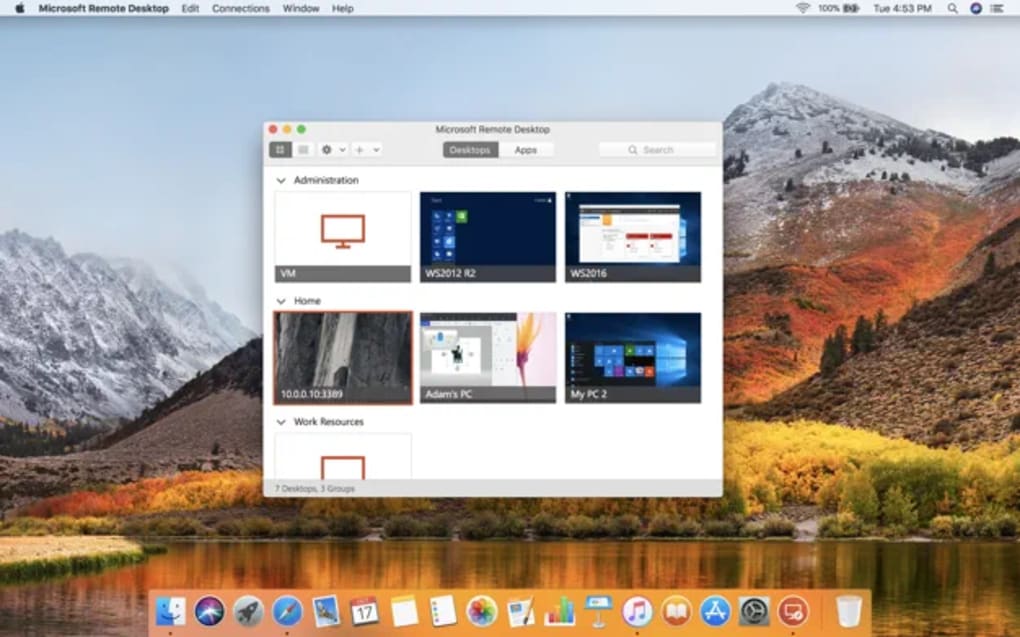
Security is paramount in remote desktop applications, and Microsoft Remote Desktop excels in this area. The application utilizes robust encryption protocols to safeguard data transmitted between the local and remote machines. This encryption ensures that sensitive information remains confidential and protected from unauthorized access or interception. Furthermore, the integration of multi-factor authentication provides an additional layer of security, requiring users to verify their identity through multiple channels, significantly reducing the risk of unauthorized access.
Multi-Monitor Support: Enhanced Productivity
Microsoft Remote Desktop for Mac supports connections to single or multiple monitors on the remote machine. This feature is invaluable for users who require access to multiple applications or screens simultaneously. The ability to work with multiple screens on the remote computer mirrors the experience of working locally, greatly improving productivity and efficiency.
Optimized Streaming: Smooth Performance
The application leverages technologies like RemoteFX to optimize the streaming of video and audio content. This ensures smooth playback even over networks with limited bandwidth or slower internet connections. Minimizing latency is crucial for a productive remote experience, and Microsoft Remote Desktop is designed to deliver a responsive and fluid interaction, regardless of network conditions.

Centralized Session Management: Admin Control
For administrators, the ability to oversee and manage user sessions is crucial. Microsoft Remote Desktop provides powerful session control features that allow administrators to monitor user activity, manage access to resources, and ensure the security and proper use of the system. This level of control is essential in managed environments where security and compliance are paramount.
Seamless File and Data Transfer: Streamlined Workflow
Transferring files and data between the local and remote machines is effortless with Microsoft Remote Desktop. The application supports convenient clipboard synchronization, allowing users to easily copy and paste text, images, and other data between the two machines. This seamless integration streamlines workflows and eliminates the need for cumbersome manual file transfers.
Microsoft 365 Integration: Unified Workspace
Microsoft Remote Desktop seamlessly integrates with Microsoft 365, a leading suite of productivity and collaboration tools. This integration provides a unified workspace, allowing users to access their Microsoft 365 applications and resources directly from the remote desktop. This tight integration enhances productivity by bringing together all essential tools into a cohesive environment. It enhances the user experience by streamlining access to frequently used applications like OneDrive, Outlook, Microsoft Teams, Word, Excel, and PowerPoint.
Using Microsoft Remote Desktop on Mac: A Step-by-Step Guide
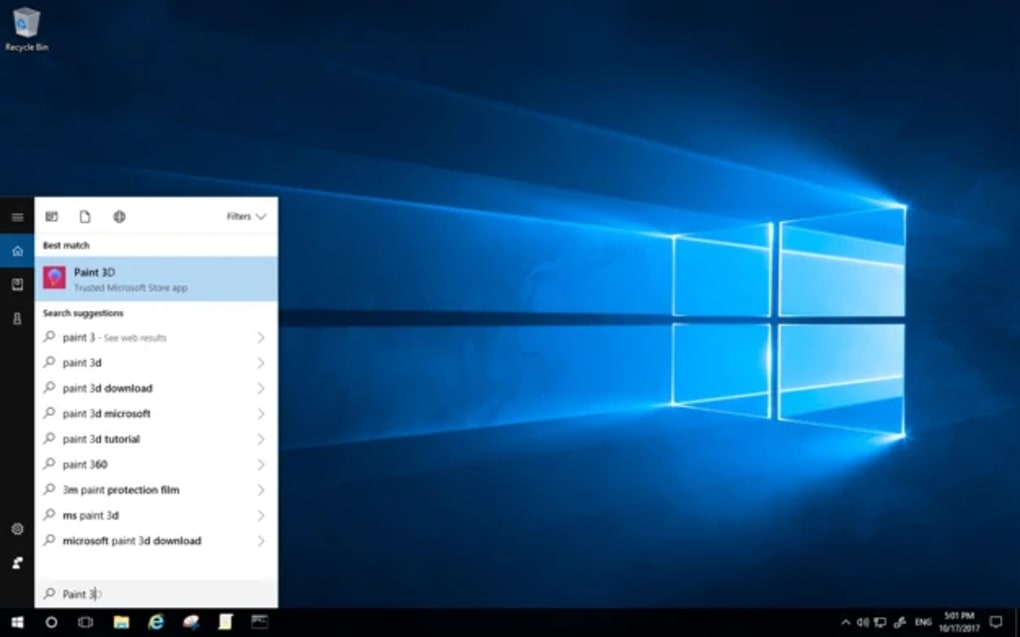
Establishing a connection with a remote computer using Microsoft Remote Desktop for Mac is straightforward. Follow these steps:
- Enable Remote Access on the Host Computer: On the computer you wish to access remotely (the “host computer”), ensure that remote access is enabled. This setting is typically found within the system settings or control panel. The host computer must be configured to accept incoming remote connections.
-
Launch the Microsoft Remote Desktop App: Open the Microsoft Remote Desktop application on your Mac.
-
Add a Remote PC: On the home screen, click the “Add PC” button.
-
Enter Connection Details: Enter the PC name or IP address of the remote computer. You can optionally add a username and password if you need to connect to a specific user account on the remote machine.
-
Configure Settings (Optional): Customize display settings, general preferences, and other options as needed.
- Add and Connect: Click “Add” to save the remote PC configuration. The remote desktop will appear on the home screen. Double-click the entry to establish a connection.
System Requirements for Microsoft Remote Desktop for Mac
To ensure optimal performance, Microsoft Remote Desktop for Mac has minimum system requirements:
- macOS Version: macOS 10.14 (Mojave) or later.
- RAM: 4 GB RAM is recommended for a smooth experience.
- Storage: 10 GB of available storage space is necessary for installation.
Microsoft Remote Desktop: Part of the Microsoft 365 Ecosystem
Microsoft Remote Desktop is now an integral component of the Microsoft 365 suite. This integration provides users with a centralized and unified access point to their work resources, regardless of their physical location. The benefits extend beyond simple remote access; users also benefit from the robust security protocols and enhanced productivity features inherent in the Microsoft 365 ecosystem.
Why Choose Microsoft Remote Desktop for Mac?
Microsoft Remote Desktop for Mac offers several compelling reasons for its adoption:
Unwavering Security: Protecting Your Data
The application prioritizes security, employing end-to-end encryption and multi-factor authentication to ensure the confidentiality and integrity of your data during remote access. This commitment to security provides peace of mind, knowing your sensitive information is protected.
Cross-Platform Consistency: Seamless Experience
While originally designed for Windows, Microsoft Remote Desktop provides a consistent and familiar user experience across platforms, including Mac. This consistency eliminates the learning curve associated with switching between different remote access applications.
Time Savings: Enhanced Productivity
Remote access allows you to work from virtually anywhere, eliminating the need to be physically present at your office or workstation. This enhanced flexibility translates directly into increased productivity and time savings.
Versatile Solution: Scalability for Individuals and Businesses
Microsoft Remote Desktop is adaptable to various needs, ranging from individual users requiring simple remote access to large businesses managing complex remote access solutions. This scalability ensures that the application can meet the demands of diverse users.
User-Friendly Interface: Intuitive and Easy to Use
The application is known for its intuitive and user-friendly design, making it easy to set up and use. Even users with limited technical experience can quickly learn to navigate the interface and establish remote connections.
Alternative Remote Desktop Applications
While Microsoft Remote Desktop is a highly capable application, several alternative remote desktop solutions are available. The choice of application often depends on specific needs and preferences. Some popular alternatives include Remote Desktop Mobile for iPhone, Remote Desktop 8 for Android, and Microsoft Remote Desktop for Windows. Other open-source options provide varying degrees of functionality and features.
Conclusion
Microsoft Remote Desktop for Mac provides a secure, reliable, and user-friendly solution for accessing and controlling remote computers. Its integration with Microsoft 365, robust security features, and cross-platform consistency make it a valuable tool for individuals and businesses alike. Whether you need to access your work desktop from home, manage a network of computers remotely, or simply enhance your productivity through flexible work arrangements, Microsoft Remote Desktop offers a compelling solution for your remote computing needs.
File Information
- License: “Free”
- Latest update: “December 9, 2024”
- Platform: “Mac”
- OS: “Mac OS X”
- Language: “English”
- Downloads: “31.3K”


