
Process Manager for Windows, a free utility, offers a comprehensive view of your system’s running processes, going beyond the basic functionality of the built-in Windows Task Manager. While seemingly a simple application, it provides valuable insights and control over your computer’s resource utilization and application behavior. This detailed review explores its features, strengths, and areas for potential improvement, helping you determine if it’s the right process management tool for your needs.
Enhanced Process Visibility and Control
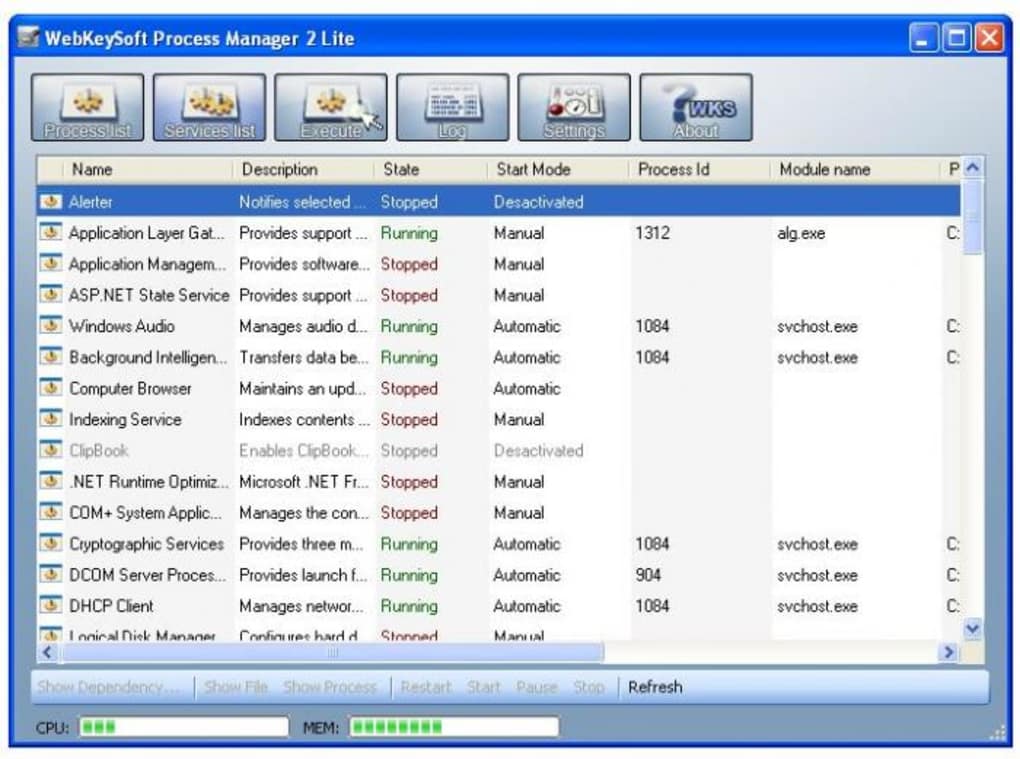
Unlike the standard Windows Task Manager, which provides a relatively concise overview of running processes, Process Manager delivers a more granular level of detail. It lists all active applications and processes, but crucially, it expands upon this by offering detailed information for each entry. This includes not only the standard process ID (PID), memory usage, and CPU consumption but also significantly enhances the user’s understanding of the system’s activity.
One of its most useful features is the display of the file location responsible for each process. This eliminates the guesswork often involved in identifying the source of a particular process, particularly helpful when dealing with unfamiliar or potentially problematic applications. Furthermore, Process Manager provides a list of dependencies for each process, a feature particularly valuable in troubleshooting situations. If a file refuses to delete because it’s in use, the dependency list helps pinpoint the culprit application, enabling effective problem resolution. This level of detail empowers users to make informed decisions about which processes to terminate, manage, or investigate further.
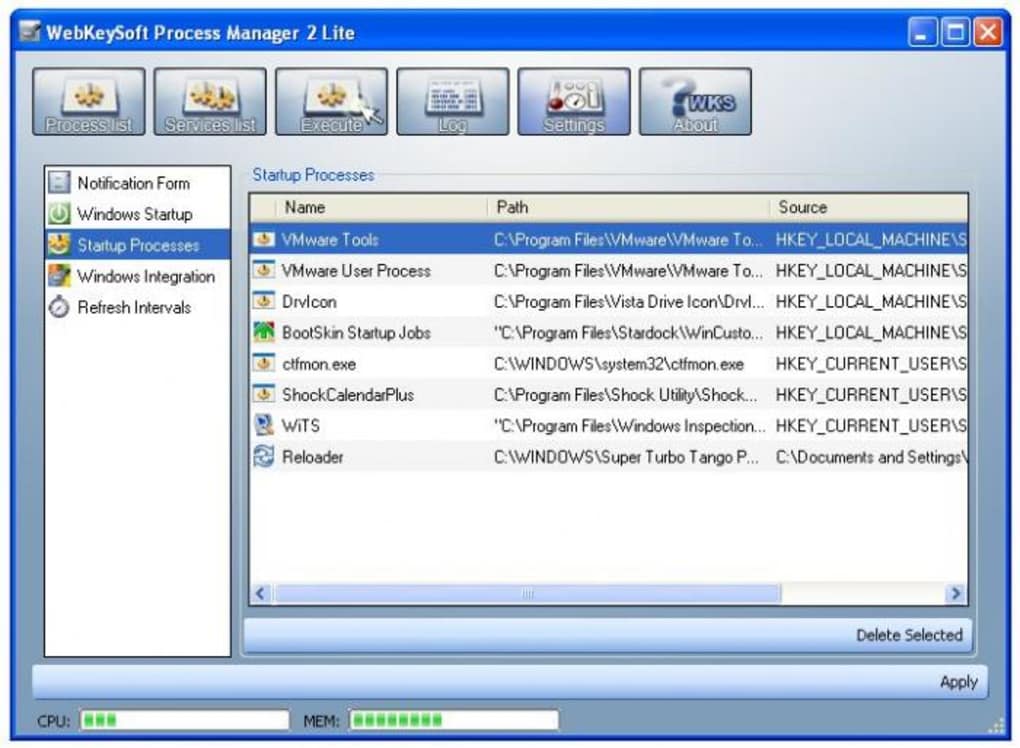
The inclusion of CPU and RAM usage meters provides a visual representation of system resource consumption, allowing users to quickly assess the impact of various processes. This real-time monitoring aids in identifying resource-intensive processes that might be impacting system performance. The program’s capability to display startup processes is equally beneficial. This allows users to identify applications automatically launching at Windows startup, enabling them to disable unnecessary programs and optimize boot times.
Moreover, Process Manager offers the convenient option of replacing the default Windows Task Manager entirely. This streamlines the user experience by providing a single, consistent interface for managing all running processes, eliminating the need to switch between multiple applications. This consolidation simplifies system management, especially for users who frequently monitor and control active processes.
Beyond Basic Functionality: A Closer Look at Features
The program’s strength lies in its ability to provide a detailed and organized view of system processes. However, the functionality extends beyond simply listing processes and their attributes. The added features enhance its usefulness for both casual users and those with a more technical understanding of system operations.
The comprehensive process information provided is more than just a list; it’s a detailed report. Each entry offers a wealth of data points, allowing for in-depth analysis of system activity. This granular level of visibility enables users to proactively manage system resources, optimize performance, and resolve conflicts related to process dependencies.
The ability to identify and understand process dependencies is a critical feature often overlooked in simpler task managers. This functionality avoids accidental termination of essential system processes, preventing potential system instability or data loss. For users unfamiliar with system processes, this feature helps avoid unintended consequences.
The inclusion of CPU and RAM usage meters provides real-time system monitoring. This visual representation instantly highlights resource-intensive processes, allowing users to quickly identify potential bottlenecks and address them proactively. This feature is beneficial for both identifying performance issues and monitoring the effect of changes in system configurations or software installations.
The option to replace the standard Windows Task Manager is a matter of convenience and workflow preference. Users accustomed to the familiar Windows Task Manager might find it disruptive, while others might prefer the enhanced functionality and information provided by Process Manager. This customizability caters to a wider range of user preferences and needs.
User Interface and Experience
While Process Manager boasts robust functionality, its user interface is arguably its weakest point. The dated appearance, reminiscent of older Windows operating systems, may not appeal to users accustomed to modern, visually appealing interfaces. The design may feel somewhat cluttered and less intuitive than more contemporary task managers. Although its functionality is excellent, a more modern and streamlined interface would significantly enhance the overall user experience.
The outdated aesthetic, however, doesn’t detract from the program’s core functionality. The information is clearly presented, even within the older design framework. Navigation is straightforward, allowing users to readily access the necessary information without significant difficulty. However, an updated interface would likely improve ease of use and enhance the overall appeal of the program.
Comparison with Alternative Solutions
Numerous alternative process managers exist for Windows, offering varying levels of functionality and interface design. Some focus on simplicity and ease of use, while others prioritize advanced features and detailed system monitoring. Compared to these alternatives, Process Manager stands out with its detailed process information and dependency tracking, but its outdated interface might be a drawback for some users.
Some competitors offer real-time process monitoring with graphical representations, which might be preferred by users seeking a more visually engaging and intuitive experience. Other alternatives might integrate with other system monitoring tools, providing a holistic view of system performance and resource utilization. The choice depends on the individual user’s priorities and preferences regarding the balance between functionality and visual appeal.
Conclusion: A Powerful Tool with Room for Improvement
Process Manager for Windows offers a compelling blend of detailed process information, dependency tracking, and resource monitoring capabilities. While its dated interface might not be aesthetically pleasing to all, its functionality remains undeniably powerful. The ability to see detailed process information, identify dependencies, and monitor resource usage makes it a valuable tool for users needing a deeper understanding of their system’s activity.
The program’s strength lies in its capability to provide a detailed and organized view of system processes, going far beyond the basic functionality of the built-in Windows Task Manager. This feature is especially beneficial for users who frequently troubleshoot software issues or manage resource-intensive applications.
However, a modernized interface would significantly enhance the overall user experience and broaden its appeal. While the current interface is functional, a more contemporary design would improve usability and visual appeal. The potential for future updates incorporating a redesigned interface and potentially adding features such as real-time graphing of resource usage would make Process Manager an even more competitive and attractive option. Despite the visual limitations, the program’s core functionality makes it a worthy contender in the landscape of Windows process management tools, especially for users who prioritize detailed system information and process dependency analysis.
File Information
- License: “Free”
- Version: “2.0”
- Latest update: “November 27, 2007”
- Platform: “Windows”
- OS: “Windows XP”
- Language: “English”
- Downloads: “7.3K”
- Size: “1.39 MB”


