
In the digital age, the ability to quickly capture and share what’s on our screens has become indispensable. Whether for documenting software bugs, creating tutorials, sharing funny moments, or simply saving important information, screen capture tools are an essential component of any modern computer user’s arsenal. For decades, Windows users have relied on the humble “Print Screen” (often abbreviated as PrtSc or PrtScr) key, a straightforward shortcut that copies the entire screen to the clipboard. While undeniably functional, this built-in capability is inherently basic, offering little in the way of flexibility, advanced features, or integrated sharing options. This is precisely where the PrtScr application steps in, presenting itself not just as an alternative, but as a significant upgrade to the fundamental act of taking a screenshot.
The PrtScr application, distinct from the native Windows function that shares its name, is a testament to how third-party developers can take a basic utility and imbue it with expanded functionality, ease of use, and a touch of style. It aims to liberate users from the limitations of the traditional Print Screen key and even surpass the capabilities of Windows’ own Snipping Tool in certain regards. For those who find themselves needing more control over what they capture, how they capture it, and what they do with it afterward, PrtScr offers a compelling, free solution that integrates seamlessly into the Windows environment. This article delves deep into the features, benefits, user experience, and overall standing of PrtScr, illustrating why it has earned a loyal following among Windows users seeking a more sophisticated screen capture utility.
PrtScr: A Stylish Evolution of Screen Capture
The journey from a simple keyboard press to a powerful screen capture utility defines the essence of the PrtScr application. It’s designed to transcend the rudimentary functionality of the Windows’ native PrtSc key, which merely dumps a bitmap of the entire screen onto the clipboard. This simplicity, while convenient for quick grabs, often proves restrictive for tasks requiring precision, immediate sharing, or further manipulation. PrtScr emerges as a direct response to these limitations, offering extended functionality that significantly enhances the user’s screen capture workflow.
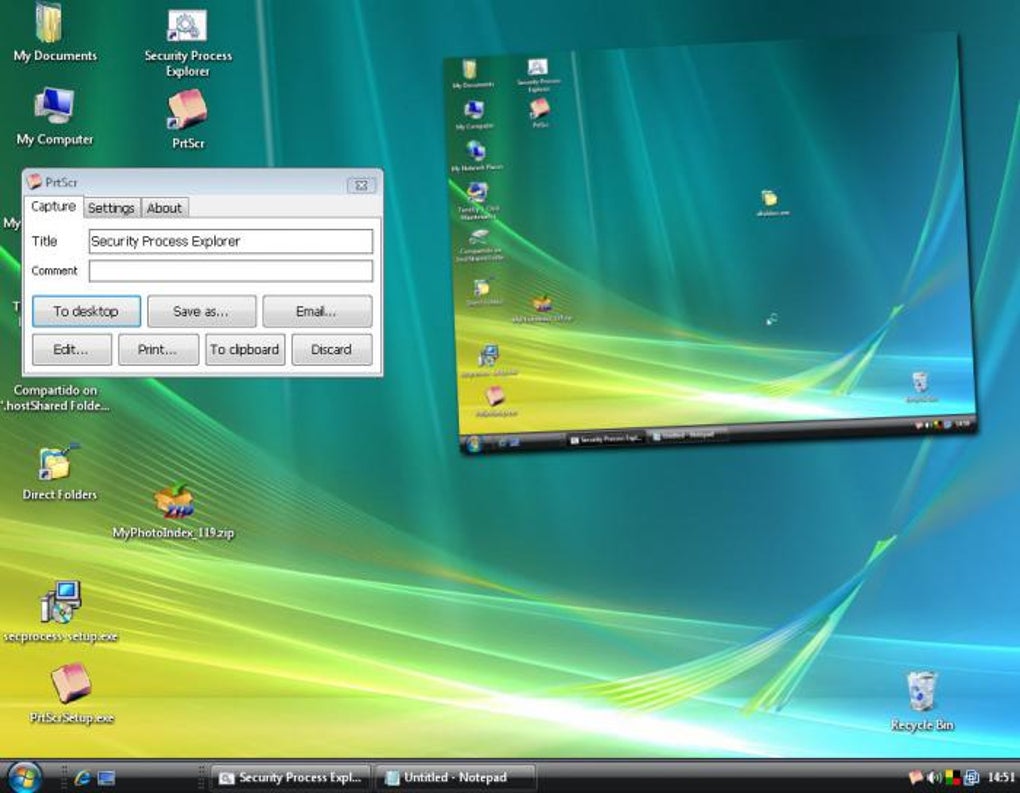
One of the immediate distinctions of PrtScr is its approach to user interaction and presentation. Upon activation, usually via the PrtSc key itself or a custom hotkey, the application doesn’t just quietly save an image; it displays captured images on the desktop with a kind of “smooth 3D animation.” This stylistic touch sets PrtScr apart from many other screen capture tools, which can often feel utilitarian or “cheesy, spreadsheet-looking.” This visual flair contributes to a more engaging and satisfying user experience, transforming a mundane task into something more aesthetically pleasing. The program operates discreetly, displaying an icon in the system tray from where its tools can be easily accessed, ensuring it’s always ready without cluttering the desktop.
Furthermore, PrtScr addresses some notable shortcomings of Microsoft’s native screen capture solutions, particularly the Snipping Tool. While the Snipping Tool is a capable utility, it has historically been restricted to specific Windows editions (like the Tablet PC Edition) and certain versions of Vista. More critically for many users, the Snipping Tool often fails to capture “overlay windows”—those translucent windows frequently used by desktop gadgets or certain applications. PrtScr overcomes these hurdles, providing a universally accessible and robust solution for all Windows users, irrespective of their specific OS version or the type of windows they need to capture. This broad compatibility and superior capture capability position PrtScr as a more reliable and versatile choice for a wide array of screen capture scenarios.
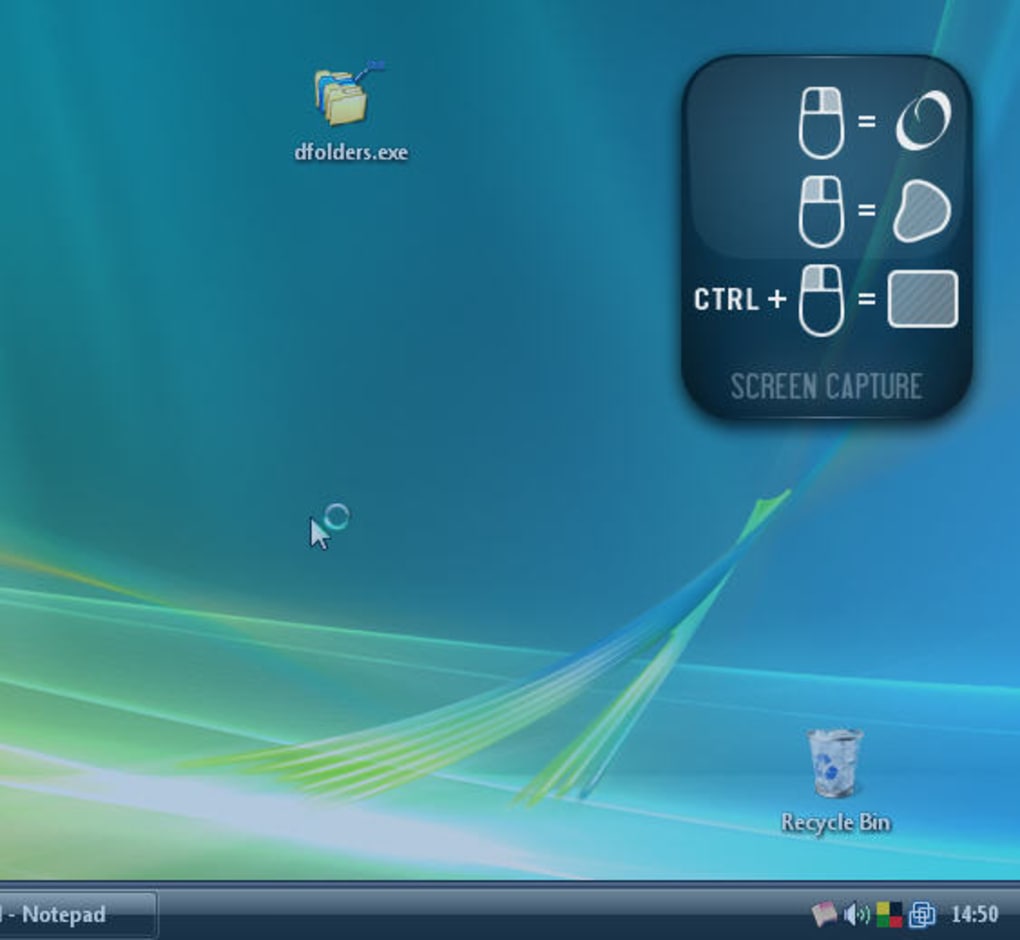
The application also prioritizes user customization, understanding that different users have different needs and preferences. It features a fairly comprehensive settings menu, allowing users to personalize key aspects of the program. For instance, the keyboard shortcut used to launch the program can be customized, enabling users to assign a hotkey that fits their workflow best. Beyond activation, users can also define the format in which captured images are saved, with options including JPG, BMP, and PNG (with transparent or opaque backgrounds). This level of control ensures that PrtScr integrates seamlessly into existing workflows, whether the captures are destined for web design, documentation, or casual sharing. The focus on directness, ease of use, and style makes PrtScr a refreshing and powerful upgrade from the default Windows screen capture experience.
Unveiling the Feature Set: Beyond the Basic Screenshot
PrtScr’s true power lies in its comprehensive suite of features that extend far beyond simply capturing the entire screen. It transforms the act of taking a screenshot into a flexible, adaptable process, catering to a diverse range of user requirements. This section explores the robust functionalities that make PrtScr a standout tool in its category, from its versatile capture methods to its integrated annotation and sharing capabilities.
Enhanced Capture Methods and Flexibility
One of the most significant advantages of PrtScr over the standard Print Screen key is its array of capture methods. Instead of being limited to a full-screen snapshot, users can choose precisely what they want to capture, thereby reducing the need for subsequent cropping and editing.
- Full Screen Capture: While this replicates the basic functionality of the PrtSc key, PrtScr’s implementation often includes the stylish display and immediate sharing options that the native key lacks.
- Rectangle Selection: This allows users to drag a precise rectangular box over the area they wish to capture. It’s incredibly useful for isolating specific parts of an application window, a section of a webpage, or any content that fits within a defined rectangular boundary. This precision minimizes extraneous information and focuses the capture on the relevant details.
- Freehand Selection: For situations where the desired capture area is irregular or doesn’t conform to a perfect rectangle, the freehand selection tool is invaluable. Users can draw any shape around the content they want to capture, offering unparalleled flexibility for unique or complex selections. This feature is particularly beneficial for creative professionals or those needing to highlight non-standard regions.
- Active Window Capture: This mode intelligently identifies the currently active application window and captures only that window, excluding any background elements or other open applications. This is a common requirement for software documentation, bug reporting, or demonstrating specific application features, as it keeps the focus solely on the program in question.
- Mouse Cursor Capture: A seemingly minor but critically important feature for tutorials, presentations, and support documentation is the ability to capture the mouse cursor. Many basic screen capture tools omit the cursor, which can make it challenging to convey specific user interactions or points of focus. PrtScr ensures that the cursor is included in the capture, adding clarity and context.
- Multiple Monitor Support: In today’s multi-monitor setups, a screen capture tool must be able to handle extended desktops gracefully. PrtScr is designed with multi-monitor environments in mind, allowing users to capture across multiple screens or select specific areas on any connected display, ensuring comprehensive coverage for modern workstations.
These diverse capture methods empower users to tailor their screenshots precisely to their needs, saving time and effort by eliminating the necessity for external editing tools for basic cropping.
Annotation, Export, and Workflow Integration
Beyond just capturing, PrtScr excels in integrating the capture process into a broader workflow, offering tools for immediate enhancement, versatile saving, and seamless sharing.
- Annotation over Capture: Once an image is captured, PrtScr allows for immediate annotation directly over the screenshot. Users can engage in “smooth, natural mouse drawing” to highlight areas, draw arrows, circle important elements, or add quick handwritten notes. This feature is crucial for creating instructional materials, providing feedback, or visually communicating specific points without needing to export the image to a separate editor first. It streamlines the feedback and explanation process significantly.
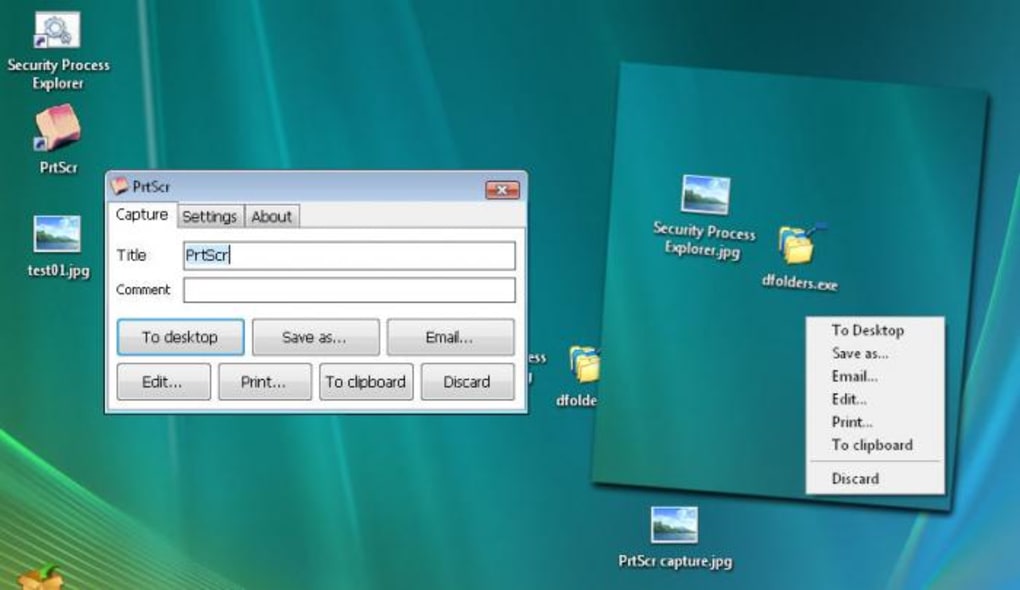
- Versatile Saving and Sharing Options: PrtScr offers an impressive array of options for what to do with a captured image, making it highly adaptable to various workflows:
- Save to Desktop/File: The most common option, allowing users to instantly save the capture to their desktop or a specified file path.
- Send as Email: A standout feature is the ability to send the captured image directly as an email attachment “straight from the program.” This eliminates the need to save the image, open an email client, compose a new message, and then attach the file manually – a significant time-saver for quick communication.
- Edit: While PrtScr itself has limited basic editing, this option might imply opening the capture in a designated default image editor for more advanced modifications.
- Print: For immediate physical copies, users can send the capture directly to a printer.
- Send to Clipboard: This replicates the default PrtSc key functionality, allowing the image to be pasted into any application that supports image input, such as word processors, graphic design software, or messaging apps.
- Flexible Export Formats: PrtScr supports three widely used image formats: JPG, BMP, and PNG. The inclusion of PNG is particularly valuable as it offers support for both opaque and transparent backgrounds, a critical feature for designers, web developers, and anyone needing to integrate screenshots into complex visual layouts. The ability to choose the appropriate format based on file size, quality, and transparency requirements adds another layer of control.
- Rescaling and Metadata: Before exporting, users can rescale the capture, which is useful for optimizing image size for web use or specific document requirements. Furthermore, PrtScr can “pre-fill capture title & comments with window title & browser URL.” This intelligent feature is a boon for documentation, research, and organizational tasks, automatically providing context and metadata for each screenshot, making them easier to identify and manage later.
These advanced features collectively make PrtScr an incredibly efficient and powerful tool for anyone requiring flexible, high-quality screen captures. It moves beyond the simple act of taking a picture of the screen to offer a comprehensive solution for capture, annotation, and integration into daily digital tasks.
User Experience and Known Limitations
Despite its impressive feature set and stylistic approach, PrtScr, like any software, comes with its own set of user experience nuances and specific limitations. Understanding these aspects is crucial for a complete picture of the application’s strengths and potential drawbacks.
Strengths in Everyday Use
For many users, PrtScr quickly becomes an indispensable part of their daily routine. Its “directness, ease of use, and style” are frequently cited as primary reasons for its popularity. Users often highlight how seamlessly it integrates into their workflow, making what could be a cumbersome task (capturing, editing, sharing) remarkably fluid. Enthusiastic testimonials reflect a deep appreciation for the tool’s reliability and consistency. One long-time user even reported returning a company-provided Mac for a regular PC, purely because PrtScr only runs on Windows, underscoring the strong attachment and perceived value. This level of dedication illustrates that for its core audience, PrtScr isn’t just another utility; it’s a critical productivity enhancer that performs “flawlessly day in day out,” often ranking just below essential applications like file explorers and office suites in terms of frequency of use. Its free availability further solidifies its position as a “MUST TRY” tool, capable of delivering professional-grade results without any cost barrier.
Navigational Hurdles
While generally user-friendly, PrtScr isn’t entirely without its initial quirks. Some users have reported taking a while to “distinguish between its three main functions” when first using the application. This indicates that the initial interface or labeling of options could be more intuitive for newcomers. Additionally, the help file is somewhat “hidden in the ‘About’ window,” which is an unusual location for documentation. Most users expect to find help directly accessible from a main menu or toolbar. These minor navigational challenges can create a slight learning curve for new users, potentially leading to initial frustration before they become accustomed to the program’s layout.
The Absence of Editing Tools
One of the most frequently mentioned limitations of PrtScr is its lack of robust, or even basic, built-in editing tools beyond the simple annotation drawing. While it offers smooth drawing for highlighting, it doesn’t provide features like text input, basic shape tools (circles, squares), resizing, or cropping after the initial capture selection. This means that for any subsequent editing needs—such as adding descriptive text, blurring sensitive information, or more precise cropping—users must export the image and then open it in a separate image editor. For a tool focused on streamlining the capture process, this absence can be a significant workflow bottleneck for users who require more than just a raw screenshot. Many competitive tools, even free ones, often include at least a basic suite of post-capture editing functionalities.
The Windows 10 Scaling Bug
A more critical and specific limitation, highlighted by several user reviews, concerns a bug impacting full-screen captures on Windows 10. Users have reported that when Windows display settings have a “zoom ratio” set to anything other than 100% (e.g., 125% or 150%), PrtScr’s full-screen capture mode often results in an image that is “smaller than the screen size,” appearing as a kind of “zoom onto the upper-left corner” and capturing only a fraction (e.g., 3/4) of the full screen. This issue, consistently reported, indicates a compatibility problem between PrtScr and Windows 10’s display scaling features. The current workaround involves manually setting the display zoom ratio back to 100% in Windows settings, which is an inconvenient compromise for users who rely on scaling for readability or accessibility. This bug significantly detracts from the reliability of full-screen captures on modern, high-DPI displays and warrants a fix in future versions of the software.
Workflow Inefficiencies (Minor but Noted)
A minor but notable point raised by a user relates to workflow efficiency for multiple post-capture actions. The user desired the ability to perform multiple actions (save, paste to clipboard, print) from a single capture, rather than having to re-capture the screen three times to achieve these three distinct functions. While PrtScr offers these actions as separate choices post-capture, the inability to apply all desired actions from one initial capture is a subtle inefficiency that, for high-volume users, could add up to wasted time.
In summary, while PrtScr boasts significant strengths in its capture versatility, stylish presentation, and integrated sharing, users should be aware of its limitations concerning advanced editing capabilities and the specific display scaling bug on Windows 10. These factors, however, do not diminish its overall value as a powerful and free screen capture utility for a vast majority of Windows users.
PrtScr in the Landscape of Screen Capture Tools
The market for screen capture tools is robust and varied, ranging from simple built-in utilities to comprehensive professional suites. PrtScr carves out a distinct niche within this ecosystem, balancing advanced functionality with accessibility and a user-friendly interface. Understanding its position relative to other tools helps to appreciate its unique value proposition.
Comparison with Windows’ Native Tools
PrtScr offers a significant upgrade over the most basic Windows function, the “Print Screen” key. The native PrtSc key merely copies the entire screen to the clipboard, requiring users to paste it into an image editor for any cropping, saving, or sharing. PrtScr, by contrast, immediately offers various capture modes (rectangle, freehand, active window), direct saving to file, email integration, and basic annotation, all wrapped in a more stylish presentation.
When compared to Microsoft’s “Snipping Tool,” PrtScr still holds notable advantages. As discussed, the Snipping Tool has historically suffered from availability restrictions to certain Windows editions and versions. More critically, it often “fails to capture overlay windows”—a crucial limitation for users working with certain desktop gadgets or transparency effects. PrtScr bypasses these issues, offering a more universally compatible and robust capture mechanism that handles overlays gracefully. Its superior hotkey customization and integrated sharing options also provide a smoother workflow than the Snipping Tool, which typically requires saving before sharing.
Alternatives and Competition
The free screen capture market is competitive, featuring several reputable alternatives.
- My Print Screen: Often positioned as a direct free alternative to the Windows Print Screen option, it provides similar basic functionality to PrtScr but might lack the same level of stylistic flair or integrated sharing capabilities.
- Gadwin PrintScreen: This tool is lauded for being “simple and powerful.” It offers many of the core features seen in PrtScr, such as customizable hotkeys and various capture modes, and has been a popular choice for years. The direct comparison often comes down to specific UI preferences and subtle feature differences.
- LightShot: Known for being “one quick and convenient option for taking screenshots,” LightShot emphasizes speed and online sharing. It often comes with a built-in editor and direct upload to its cloud service, which is a strong point for users who frequently share images online and desire quick edits. PrtScr’s strength lies more in its local saving, email integration, and distinct visual feedback.
- ShareX: Often considered one of the most powerful and feature-rich free screenshot tools, ShareX offers an incredibly extensive array of capture options, advanced editing, automated upload destinations, workflow automations, and even screen recording. While PrtScr is simpler and easier to get started with, ShareX caters to power users who require maximal control and integration with various online services.
- Snagit: This is a premium, paid tool from TechSmith, widely regarded as one of the industry standards for screen capture and recording. Snagit offers a professional-grade editor, advanced effects, robust video capture, and comprehensive organization features. PrtScr cannot compete with the sheer breadth and depth of Snagit’s capabilities, but it doesn’t aim to. PrtScr targets users who need enhanced features beyond basic Windows functionality without the cost or complexity of a full professional suite.
- Screenpresso: Another highly recommended tool, Screenpresso, offers a full screen capture software with a number of interesting features, including a built-in editor, sharing options, and even a document generator. It’s often seen as a middle-ground solution, offering more than basic free tools but perhaps less than Snagit, with both free and paid versions available.
PrtScr carves its niche by providing a robust, stylish, and free solution that significantly enhances the core screen capture experience without overwhelming the user with excessive features or a complex interface. Its unique selling points—like the visually appealing 3D animation of captured images, direct email functionality, and multi-monitor support—distinguish it from many alternatives. While it may lack the advanced editing suite of tools like ShareX or Snagit, its focus on “directness, ease of use, and style” makes it an excellent choice for a wide array of Windows users who need a powerful, yet straightforward, screen capture utility that integrates smoothly into their daily tasks. For many, PrtScr strikes an optimal balance between functionality, user-friendliness, and cost-effectiveness.
Conclusion
PrtScr stands out as a highly effective, stylish, and free screen capture utility for Windows users, offering a significant leap forward from the limitations of the native “Print Screen” key. Its core strength lies in its ability to provide extended functionality—including diverse capture methods like rectangle, freehand, and active window selections, coupled with vital features such as mouse cursor capture and multi-monitor support. The application excels in integrating seamlessly into the user’s workflow, allowing for immediate annotation, versatile saving to various formats, and direct sharing via email, all presented with an engaging “smooth 3D animation” that adds a touch of sophistication.
Despite its robust feature set, PrtScr does present a few minor drawbacks. The initial navigation can be slightly counter-intuitive, and the help documentation is somewhat tucked away. More notably, the absence of comprehensive built-in editing tools means that users requiring advanced post-capture modifications will need to rely on external image editors. The most significant technical issue is the reported bug on Windows 10 concerning full-screen captures when display scaling is set to anything other than 100%, which can lead to partial captures. This particular bug warrants attention from the developers for future updates.
Nevertheless, PrtScr remains an invaluable asset for anyone seeking more control, flexibility, and efficiency in their screen capture activities. Its ability to surpass the limitations of Windows’ native tools, including the Snipping Tool’s issues with overlay windows, makes it a superior choice for many. For users who prioritize a powerful, straightforward, and free solution that streamlines the capture-to-share process, PrtScr delivers exceptional value. It is an essential tool for developers, content creators, educators, and general users alike, providing a stylish and highly functional way to interact with and document their digital world.
File Information
- License: “Free”
- Latest update: “November 10, 2009”
- Platform: “Windows”
- OS: “Windows XP”
- Language: “English”
- Downloads: “213.1K”
- Size: “2.46 MB”


