
ShellExView is a powerful freeware utility developed by NirSoft that provides a comprehensive view of the shell extensions installed on your Windows system. Shell extensions are essentially in-process COM (Component Object Model) objects that extend the functionality of the Windows operating system. They are responsible for adding features and context menu options to Windows Explorer and other applications, significantly enhancing user interaction and experience. Understanding and managing these extensions is crucial for troubleshooting system issues, optimizing performance, and maintaining system security. This article explores ShellExView’s capabilities, its use cases, and its importance in managing the often-overlooked world of Windows shell extensions.
Understanding Shell Extensions: The Hidden Power Behind Windows Explorer
Before delving into the specifics of ShellExView, it’s essential to grasp the concept of shell extensions and their role in the Windows ecosystem. These extensions are not stand-alone applications; instead, they integrate seamlessly with the operating system, adding functionality that wouldn’t otherwise be present. Consider the common experience of right-clicking a file. The context menu that appears, offering options like “Open With,” “Send To,” “Properties,” and various application-specific commands, is populated largely by shell extensions.
Many shell extensions are installed automatically by Windows during the operating system’s installation. These core extensions provide fundamental functionality, such as viewing file properties or performing basic file manipulations. However, the real power of shell extensions comes from third-party applications. When you install software, particularly programs that interact with files (such as media players, archive utilities, and image editors), they often install associated shell extensions.
For example, installing WinZip adds a context menu option to zip and unzip files directly from Windows Explorer. Similarly, installing a photo editor might add options to quickly edit images within the explorer context menu. These additions dramatically improve workflow and user experience by integrating directly into the familiar Windows environment. However, this integration can sometimes lead to conflicts, unexpected behavior, or security vulnerabilities if poorly designed or malicious extensions are installed.
ShellExView: A Comprehensive Shell Extension Manager
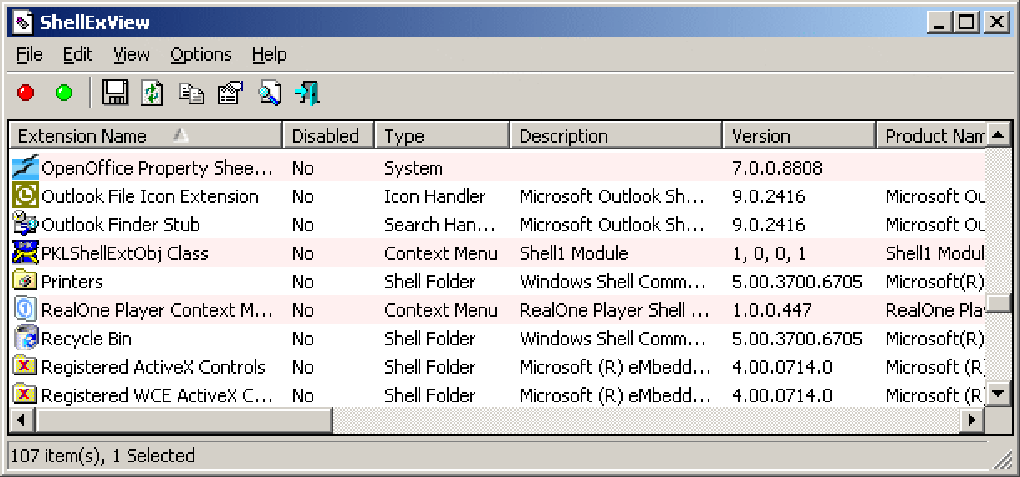
This is where ShellExView steps in. This free utility provides a detailed list of all shell extensions currently active on your system. It doesn’t simply list them; it displays extensive information about each extension, including:
- Extension Name: The descriptive name of the shell extension.
- Company Name: The name of the software developer or organization that created the extension.
- Description: A brief explanation of the extension’s purpose (if available).
- Type: The category of the shell extension (e.g., context menu extension, icon overlay, etc.).
- Path: The location of the extension’s DLL (Dynamic Link Library) file on the hard drive.
- Status: Whether the extension is currently enabled or disabled.
- CLSID: The Class Identifier, a unique identifying code for the COM object.
- In-process Server: Indication of whether the extension runs within the Explorer process itself or as a separate process.
This comprehensive information allows users to quickly identify the source of any context menu or Explorer-related issues. The ability to view the file path is particularly useful for identifying potentially problematic extensions or those that might be associated with malware.
Key Features and Functionality of ShellExView
Beyond its simple yet powerful listing capabilities, ShellExView offers several crucial features that make it an invaluable tool for system administrators and power users:
-
Enabling and Disabling Extensions: One of the most significant features is the ability to easily enable or disable shell extensions directly from the interface. This allows users to troubleshoot issues by selectively disabling suspected problematic extensions. If disabling an extension resolves a problem, it confirms the extension as the source of the issue.
-
Searching and Filtering: ShellExView provides robust search and filtering capabilities. Users can quickly locate specific extensions by name, company, path, or CLSID. This is particularly helpful when managing a large number of extensions.
-
Sorting: The displayed list of shell extensions can be sorted by any column, enabling users to organize the data according to their specific needs.
-
Exporting Data: The information displayed by ShellExView can be exported to various formats (CSV, TXT, HTML) for further analysis or archiving. This is useful for documenting the system’s shell extension configuration for troubleshooting or auditing purposes.
- Drag-and-Drop Functionality: This allows users to easily drag and drop files from ShellExView’s window into Windows Explorer or other applications, facilitating faster workflow.
Using ShellExView for Troubleshooting and System Optimization
ShellExView’s practical application extends far beyond simple exploration. It’s an effective tool for addressing various Windows-related problems:
-
Context Menu Issues: A cluttered or malfunctioning context menu is a common problem. ShellExView allows users to identify and disable extensions causing unexpected items or errors. This ability is extremely valuable in identifying conflicting or rogue extensions.
-
Explorer Performance Problems: Excessive shell extensions can sometimes slow down Windows Explorer’s performance. By identifying and disabling unused or unnecessary extensions, users can often improve Explorer’s speed and responsiveness.
-
Security Concerns: Malicious or unwanted shell extensions can compromise system security. ShellExView allows users to identify and remove potentially harmful extensions that may have been installed without their knowledge. Identifying extensions with unusual paths or suspicious names is crucial for security analysis.
-
Software Conflicts: Conflicts between different shell extensions from different applications can cause unexpected behavior or crashes. ShellExView helps users identify potential conflicts by analyzing the list of installed extensions. Disabling one or both conflicting extensions can often resolve the conflict.
- System Cleanup: Regularly reviewing the list of shell extensions provided by ShellExView can help identify obsolete or unused extensions that can be safely uninstalled or disabled. This helps maintain a clean and efficient system.
ShellExView vs. Alternative Solutions
While several alternative utilities provide some similar functionality, ShellExView stands out due to its combination of features, ease of use, and comprehensive information provided. Many other utilities might offer basic context menu management, but ShellExView’s detailed view of the underlying shell extensions, its ability to easily enable/disable them, and its robust filtering and exporting capabilities make it a much more powerful and versatile tool.
Conclusion: An Indispensable Tool for Windows Users
ShellExView is more than just a utility; it’s a powerful tool for managing and understanding a critical aspect of the Windows operating system. Its ability to provide a detailed view of shell extensions, combined with its easy-to-use interface and powerful features, makes it an indispensable asset for both novice and advanced Windows users. Whether troubleshooting issues, optimizing performance, or maintaining system security, ShellExView is a must-have tool for anyone seeking to gain deeper control and understanding of their Windows environment. Its free availability and straightforward operation make it accessible to all users, regardless of their technical expertise, solidifying its place as a crucial utility in any Windows power user’s arsenal.
File Information
- License: “Free”
- Latest update: “May 23, 2023”
- Platform: “Windows”
- OS: “Windows 98 SE”
- Language: “English”
- Downloads: “57.9K”
- Size: “73.15 KB”


