
ThrottleStop is a powerful and versatile utility designed to monitor and manipulate CPU throttling behaviors in Windows-based systems. For users with a deep understanding of CPU architecture and power management, it provides unparalleled control over system performance, enabling optimizations for specific tasks and scenarios. However, improper use can lead to instability or even hardware damage, so a thorough understanding of its functionalities and potential risks is crucial before employing this tool. This article will explore ThrottleStop’s capabilities, its advantages and disadvantages, and offer guidance on safe and effective usage.
Understanding CPU Throttling and ThrottleStop’s Role
Modern CPUs, particularly those found in laptops and mobile devices, employ various throttling mechanisms to manage power consumption and thermal output. These throttling techniques, often implemented by the manufacturer, can limit processor clock speeds and voltage under specific conditions, such as high temperatures or sustained heavy workloads. While these built-in throttling mechanisms protect the hardware from damage, they can also significantly impact performance. This is where ThrottleStop intervenes.
ThrottleStop allows users to actively monitor and adjust these throttling behaviors. It provides a detailed view of various CPU parameters, including clock speed, voltage, temperature, and power consumption. This granular level of monitoring enables users to identify specific throttling events and potentially mitigate them. The program doesn’t simply override throttling; it provides the means to understand why throttling is occurring and, within safe limits, allows for modification to improve performance in specific use cases.
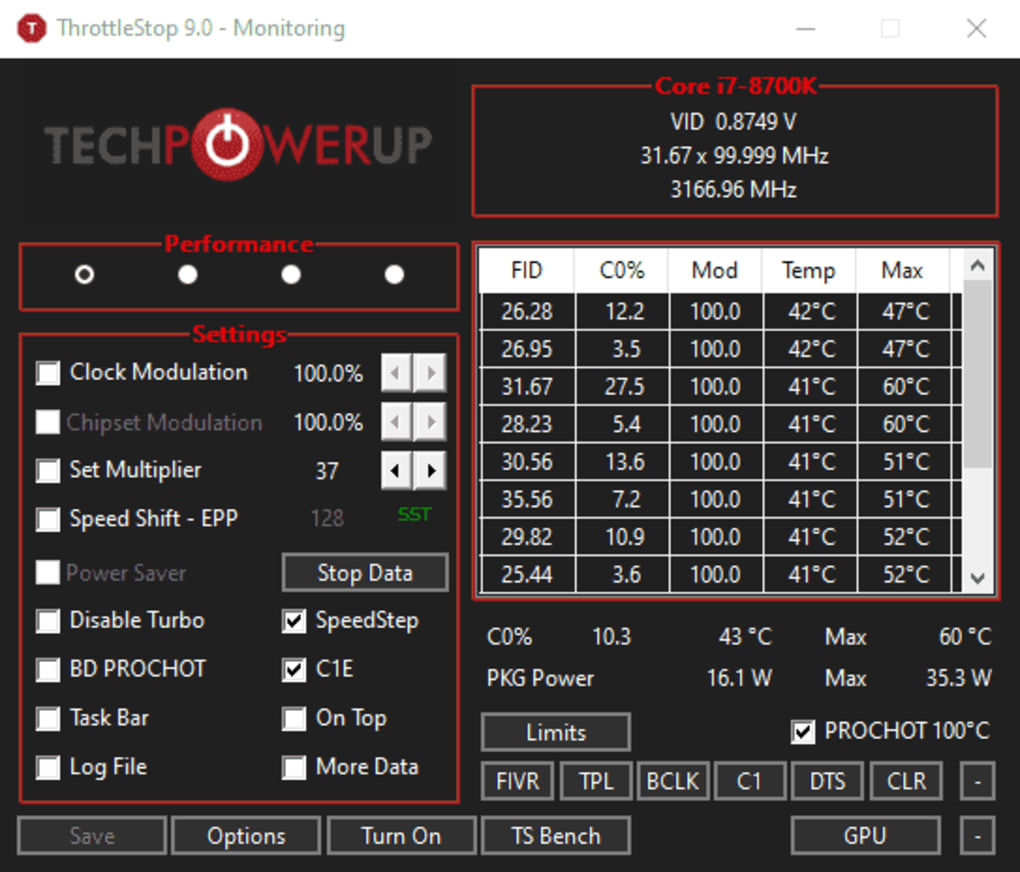
For example, a laptop might throttle its CPU during intense gaming sessions to prevent overheating. ThrottleStop could be used to observe the CPU’s behavior under these conditions, identifying the trigger point for throttling. With careful adjustments (and a thorough understanding of the risks), users might be able to fine-tune power limits and thermal thresholds to achieve higher performance without compromising the system’s stability or longevity.
However, it’s critical to emphasize that tampering with CPU power limits and thermal thresholds without proper knowledge can have serious consequences. Overclocking without adequate cooling can lead to irreversible hardware damage, significantly shortening the lifespan of your processor. ThrottleStop is a tool for managing throttling, not for indiscriminately pushing the CPU beyond its safe operating limits.
Key Features and Functionality of ThrottleStop
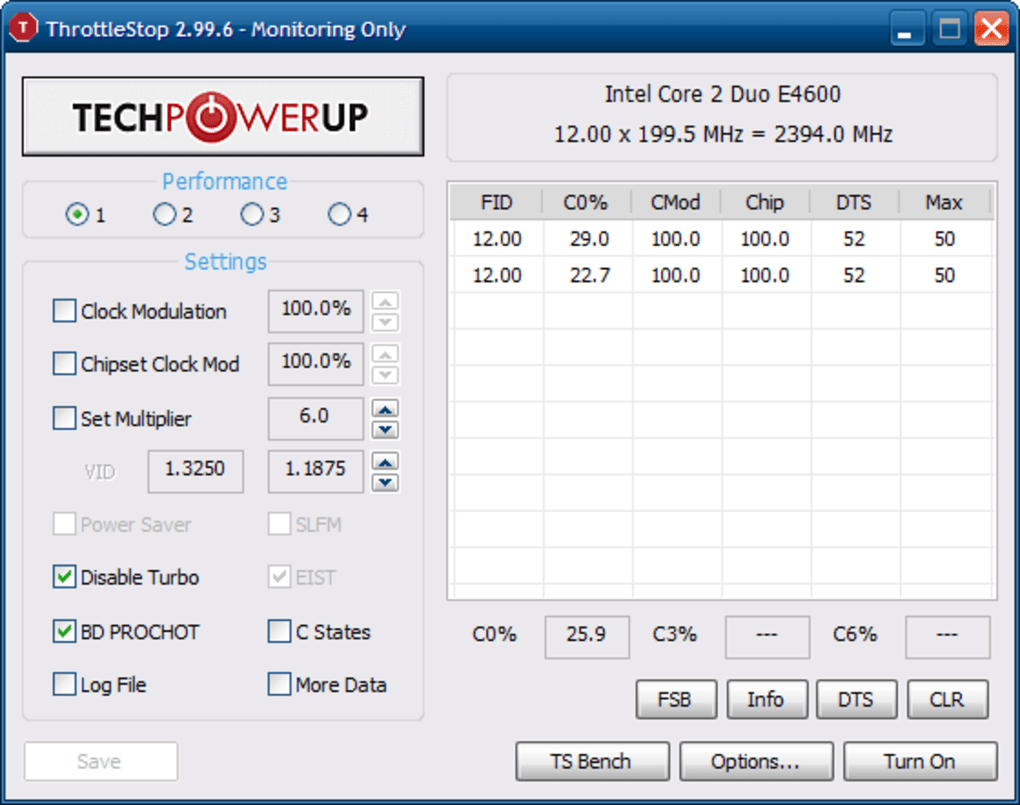
ThrottleStop’s interface, while not visually flashy, is designed for efficiency and clarity. It provides a straightforward presentation of key CPU parameters and offers intuitive controls for adjustment. Some of its prominent features include:
-
Real-time CPU monitoring: ThrottleStop provides a comprehensive overview of crucial CPU metrics such as clock speed, core voltage, temperature, and power consumption. This real-time monitoring is crucial for understanding the system’s behavior under different workloads and identifying potential throttling issues.
-
Throttling control: The software allows for the adjustment of various throttling parameters. This includes the ability to modify power limits, thermal thresholds, and other settings that influence CPU behavior. This is where careful consideration is paramount, as incorrect modifications can lead to instability.
-
Predefined profiles: ThrottleStop often includes pre-configured profiles optimized for different scenarios, such as gaming, internet browsing, and battery saving. These profiles offer a convenient starting point for users, allowing them to quickly switch between various performance levels without needing to manually configure settings each time.
-
Customizable settings: Beyond the pre-defined profiles, users can create and save their own custom profiles, tailoring the CPU behavior to their specific needs and preferences. This level of customization allows for highly targeted performance optimizations.
-
Detailed logging: For advanced users, ThrottleStop offers logging capabilities that record CPU activity over time. This detailed logging can be invaluable for diagnosing performance issues and analyzing the effectiveness of various settings.
Using ThrottleStop Safely and Effectively
The power of ThrottleStop comes with significant responsibility. Improper use can lead to system instability, data loss, and hardware damage. Here are some essential guidelines for using ThrottleStop safely and effectively:
-
Understand your CPU: Before making any adjustments, thoroughly research your specific CPU model’s specifications and thermal limits. This information is crucial for setting safe and realistic performance targets. Exceeding these limits can lead to overheating and permanent damage.
-
Start conservatively: When modifying settings, begin with small adjustments and carefully monitor the system’s response. Gradually increase adjustments only if the system remains stable and within safe thermal limits.
-
Monitor temperatures: Continuously monitor CPU temperatures using ThrottleStop or a separate monitoring tool. Never allow the CPU to operate at temperatures exceeding its maximum specified operating temperature. Sustained high temperatures can severely damage the processor.
-
Test thoroughly: After making any changes, thoroughly test the system under various workloads to ensure stability and performance. Look for signs of instability such as crashes, freezes, or erratic behavior.
-
Backup your data: Before making significant changes to CPU settings, back up your important data. This precaution safeguards against potential data loss in the event of system instability.
-
Consult resources: Numerous online resources, forums, and communities dedicated to CPU overclocking and optimization provide valuable information and support. Engage with these resources to learn more about safe and effective techniques.
-
Understand the risks: Always acknowledge the potential risks involved in manipulating CPU settings. Improper configuration can lead to irreversible hardware damage and void warranties.
ThrottleStop Alternatives and Comparisons
While ThrottleStop is a popular choice for CPU throttling management, several alternative tools offer similar functionalities. These alternatives may have different interfaces, features, and levels of customization. Comparing different tools allows users to choose the one that best suits their needs and skill level. Some examples of alternative tools might include other specialized CPU monitoring and tuning applications. However, it is important to note that the level of control and access offered by ThrottleStop is not always matched by these alternatives. Users should carefully research the features and capabilities of any alternative before choosing a replacement.
In conclusion, ThrottleStop is a potent tool for advanced users seeking fine-grained control over their CPU’s performance and power management. However, its power necessitates a deep understanding of CPU architecture, thermal limits, and the potential risks involved. By following safe usage practices and exercising caution, users can leverage ThrottleStop to optimize their system’s performance within safe boundaries. Always prioritize the health and longevity of your hardware; performance gains should never come at the cost of irreversible damage.
File Information
- License: “Free”
- Latest update: “January 6, 2025”
- Platform: “Windows”
- OS: “Windows 7”
- Language: “English”
- Downloads: “116.3K”
- Size: “1.79 MB”


