
UltraVNC is a powerful and versatile free remote desktop software solution that enables users to control and access remote computers over a network. Its lightweight design, speed, and feature-rich capabilities have established it as a popular choice for both personal and professional use. This comprehensive guide delves into the various aspects of UltraVNC, exploring its functionality, advantages, and limitations.
Understanding UltraVNC’s Core Functionality
At its core, UltraVNC functions as a Virtual Network Computing (VNC) client and server. VNC is a graphical desktop-sharing system that allows a user to control a computer remotely as if they were sitting directly in front of it. UltraVNC’s implementation distinguishes itself through its emphasis on speed and efficiency, even in scenarios with limited bandwidth. Unlike some other remote desktop solutions that demand significant system resources and network capacity, UltraVNC prioritizes a lightweight approach, minimizing lag and ensuring a responsive user experience.
The software operates on a client-server model. The server component is installed on the computer you wish to control (the remote machine), while the client component is installed on the computer from which you want to initiate the remote session (your local machine). Once both components are installed and configured, you can connect to the remote machine using a unique identifier, effectively establishing a visual and interactive connection to its desktop.
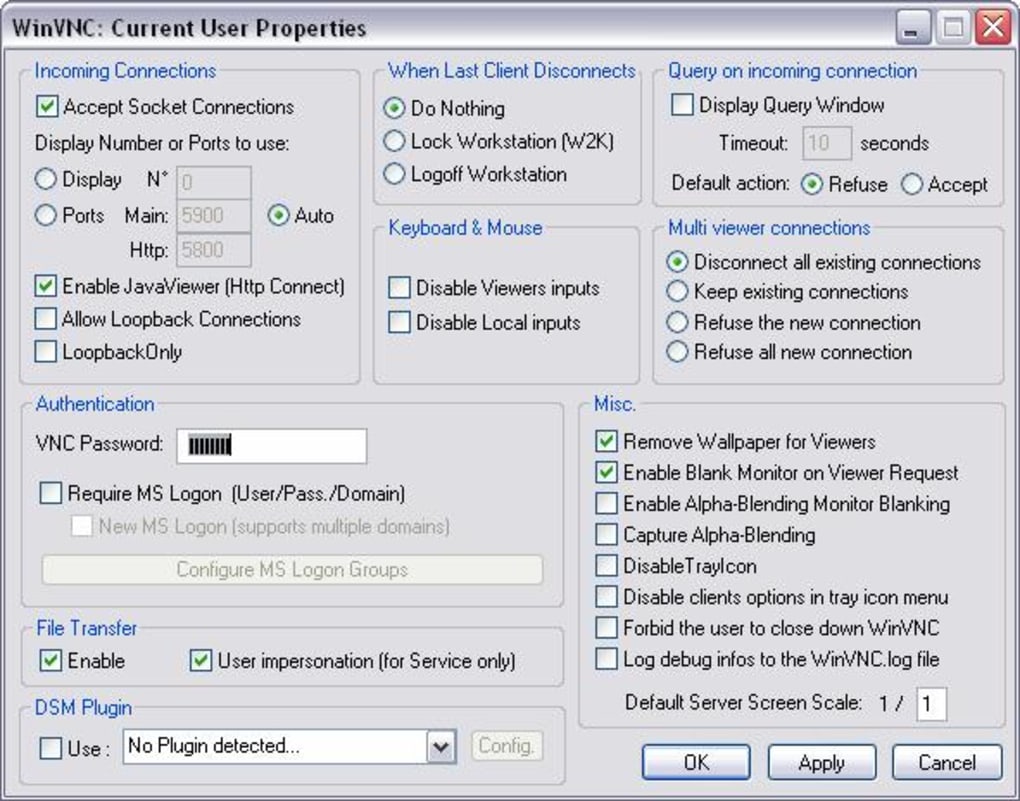
This connection extends beyond simple screen mirroring; UltraVNC offers a robust suite of features that enhance the remote access experience. These features include file transfer capabilities, enabling seamless exchange of files between the local and remote machines. A built-in viewer toolbar offers convenient access to various control options, allowing users to adjust display settings and other preferences. Scaling options cater to different screen resolutions and aspect ratios, ensuring optimal visibility regardless of the configurations of the involved computers. The integrated text chat function simplifies communication during remote sessions, making collaboration and troubleshooting easier.
Key Advantages of Using UltraVNC
UltraVNC’s popularity stems from several key advantages:
- Speed and Efficiency: UltraVNC is renowned for its speed and efficiency. Its optimized code and efficient data transmission mechanisms result in minimal lag during remote sessions, even over slower network connections. This speed advantage is particularly noticeable when compared to other remote desktop applications that can experience significant delays due to bandwidth limitations. This is crucial for tasks requiring real-time responsiveness, such as collaborative editing or troubleshooting complex technical issues.
-
Lightweight Design: The software’s small footprint contributes significantly to its speed and performance. It requires minimal system resources, ensuring that both the client and server machines maintain optimal performance even when running other applications concurrently. This lightweight design is especially beneficial for older or less powerful computers, allowing them to effectively support remote sessions without compromising their overall functionality.
-
Free and Open-Source (Partially): UltraVNC is primarily free to use, making it an accessible option for individuals and organizations with limited budgets. While the core functionality is free, some advanced features might require separate modules or extensions, but the basic functionality needed for remote desktop control is freely available.
-
Versatile Feature Set: Beyond the fundamental remote desktop capabilities, UltraVNC provides a collection of additional features designed to enhance the user experience. File transfers, viewer toolbars, scaling options, and text chat functionalities streamline remote interactions, simplifying tasks such as troubleshooting, file sharing, and collaborative work. These features contribute to its adaptability for various scenarios, making it useful for both technical support and remote collaboration.
-
Cross-Platform Compatibility (Limited): While primarily known for its Windows compatibility, UltraVNC has some limited cross-platform capabilities depending on the specific version and setup. This might require some advanced configuration and isn’t as seamless as fully cross-platform solutions. However, its strong Windows support makes it a solid choice for those predominantly working within the Windows ecosystem.
Potential Drawbacks and Limitations
Despite its advantages, UltraVNC does have some limitations:
- Configuration Complexity: Initial setup and configuration of UltraVNC can be challenging for users unfamiliar with VNC technology or network settings. While the core functionality is straightforward, configuring advanced settings, such as security protocols and port forwarding, might require technical expertise. This complexity might deter users who prefer simpler, more user-friendly interfaces.
-
Security Considerations: Like any remote access software, UltraVNC requires careful consideration of security implications. Improper configuration or inadequate security measures can expose the remote machine to vulnerabilities. Ensuring proper firewall settings, strong passwords, and encryption protocols are crucial for protecting the remote system from unauthorized access and potential attacks. Users should be aware of the security implications and take necessary precautions.
-
Limited Cross-Platform Support (Reiteration): The cross-platform support, although existent to some extent, is not as robust as some competing applications. While you might be able to connect from a non-Windows machine, it often requires extra effort and might not work seamlessly in all cases.
-
Lack of Centralized Management: UltraVNC doesn’t provide centralized management capabilities, such as those offered by enterprise-grade solutions. This can make managing multiple remote connections or a large network of computers more challenging. Users managing several machines might find that the administrative overhead is higher compared to solutions with built-in centralized management.
UltraVNC Compared to Other Remote Desktop Solutions
UltraVNC stands as a viable alternative amongst various remote desktop solutions available. While commercial options like TeamViewer offer more advanced features and centralized management, UltraVNC competes favorably in terms of speed, simplicity, and cost. Other open-source alternatives exist, each with its strengths and weaknesses. The choice ultimately depends on individual needs and priorities. Factors to consider include: the complexity of the desired configuration, the level of technical expertise available, the need for advanced features (such as centralized management), the number of concurrent connections required, and the budget allocated for the software.
Several key competitors include:
-
TeamViewer: A widely used commercial solution offering a user-friendly interface and extensive features, including centralized management and advanced security options. However, it comes at a cost and might be overkill for simple remote desktop needs.
-
AnyDesk: Another popular commercial option known for its speed and performance, particularly in scenarios with low bandwidth. It features a simpler interface than TeamViewer, making it easier to use for less technically inclined users.
-
TightVNC: A free and open-source VNC implementation similar to UltraVNC. It shares many of UltraVNC’s strengths but might differ slightly in its interface and feature set.
-
VNC Connect: A commercial offering focused on providing a secure and reliable remote desktop solution for both personal and professional use. Its features often cater to larger organizations with diverse needs.
Each of these alternatives offers a different combination of features, cost, and usability, and a careful comparison is advised before selecting the most appropriate solution.
Conclusion: Choosing the Right Remote Desktop Solution
UltraVNC provides a solid and free option for remote desktop control. Its speed, lightweight nature, and versatile features make it a compelling choice for many users. However, understanding its limitations, particularly regarding initial configuration complexity and security considerations, is vital. Before deploying UltraVNC, thoroughly assess your needs and technical capabilities. If simpler setup and advanced features such as centralized management are prioritized, commercial alternatives might prove more suitable. For those comfortable with a slightly steeper learning curve and prioritizing speed and free access to core functionality, UltraVNC remains a powerful and reliable option. Ultimately, the best remote desktop solution depends on your specific requirements and preferences.
File Information
- License: “Free”
- Latest update: “May 7, 2025”
- Platform: “Windows”
- OS: “Windows 8”
- Language: “English”
- Downloads: “178.8K”
- Size: “5.62 MB”


