
Universal Android Debloater GUI is a powerful and versatile tool designed to simplify the removal of unwanted system applications (bloatware) from your Android device. This comprehensive guide will explore its functionality, usage, and potential benefits, addressing common questions and concerns. While offering significant advantages for users seeking to optimize their Android experience, it’s crucial to understand the implications and potential risks associated with modifying system applications.
Understanding Bloatware and the Need for Debloating
Modern Android devices often come pre-installed with a plethora of applications, many of which are considered “bloatware.” These applications, frequently pre-installed by manufacturers or carriers, are often unnecessary, consuming valuable storage space and potentially impacting battery life and performance. While some might offer useful features, many remain unused and contribute to system clutter. Bloatware can also drain system resources, leading to sluggish performance, particularly on devices with limited storage capacity or processing power.
Debloating, the process of uninstalling these unnecessary system applications, allows users to regain control over their device’s software environment. By removing bloatware, users can reclaim storage space, potentially improve battery life, and enhance the overall responsiveness of their Android device. This process, however, requires caution, as removing crucial system components can lead to instability or malfunction. Tools like Universal Android Debloater GUI aim to simplify this process while minimizing the risk of unintended consequences.
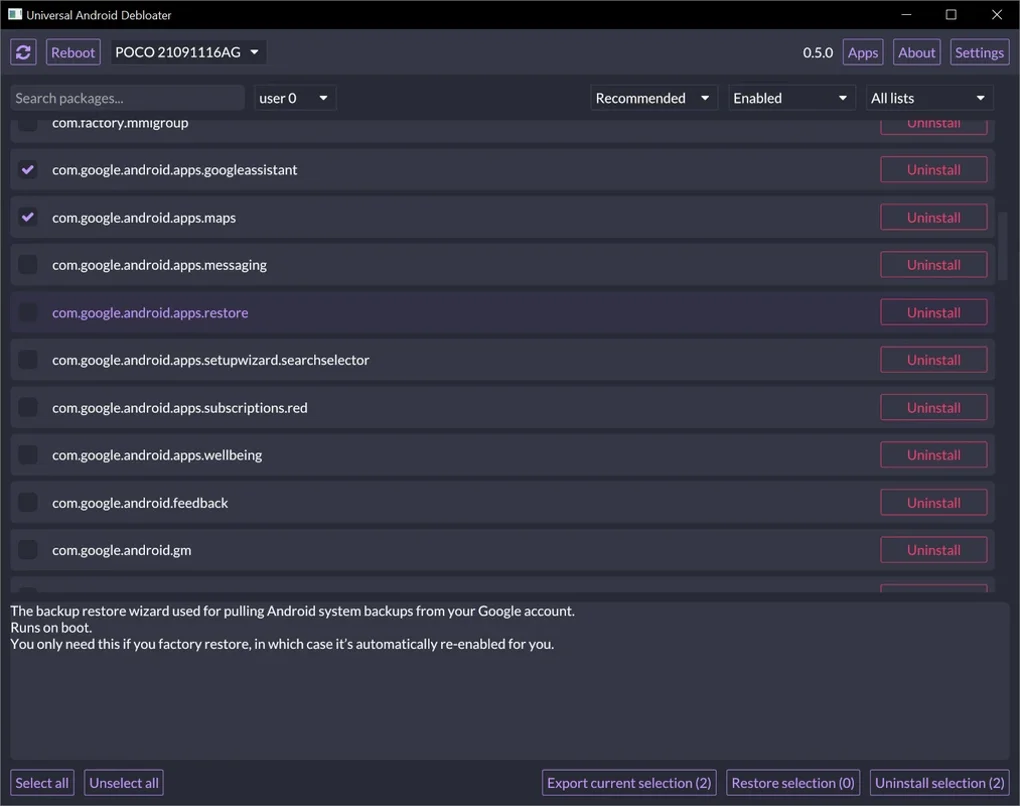
Using Universal Android Debloater GUI: A Step-by-Step Guide
Universal Android Debloater GUI provides a user-friendly graphical interface for managing and removing system applications. Before using this tool, several essential prerequisites must be met to ensure successful operation:
-
Root Access: Most system applications require root privileges for uninstallation. Root access grants elevated permissions, allowing the tool to bypass standard Android restrictions on app removal. Numerous methods exist for rooting Android devices, but it’s crucial to research and choose a method appropriate for your specific device model and Android version. Rooting voids the warranty on most devices, so proceed with caution and awareness of the potential risks.
-
Android Debug Bridge (ADB) Installation: ADB is a command-line tool that facilitates communication between your computer and your Android device. It’s essential for Universal Android Debloater GUI to interact with the device and manage application uninstallation. ADB is typically included in the Android SDK Platform-Tools package. Download and install this package from the official Android developer website, ensuring that it’s correctly configured and added to your system’s PATH environment variable.
-
USB Debugging Enabled: USB debugging is a developer option that enables enhanced communication between your Android device and your computer. It’s vital for Universal Android Debloater GUI to recognize and interact with your device. To enable USB debugging, navigate to your Android device’s “Settings,” find “Developer options” (this often requires enabling it by repeatedly tapping the “Build number” in the “About phone” section), and then enable “USB debugging.”
Once these prerequisites are in place, connecting your Android device to your computer via USB cable allows Universal Android Debloater GUI to detect the connected device and list the installable applications. The GUI then presents a list of system applications, often categorized and described for easier navigation. Users can select specific apps for removal, ensuring the necessary permissions and confirmation before proceeding. The software itself provides warnings regarding potentially critical system apps, reducing the risk of accidentally uninstalling crucial components.
The process involves connecting the device, selecting the applications to remove, and initiating the uninstallation procedure through the GUI. The software handles the communication with the device through ADB, performing the necessary commands to remove the selected applications.
Features and Benefits of Universal Android Debloater GUI
Universal Android Debloater GUI stands out due to its user-friendly interface and several key features:
-
Intuitive Graphical Interface: Unlike command-line tools, the GUI simplifies the debloating process, making it accessible to users without extensive technical expertise. The clear layout and categorized app lists minimize confusion and enhance usability.
-
App Descriptions and Safety Indicators: The software provides brief descriptions of each application, helping users understand their purpose before making removal decisions. It also indicates the level of risk associated with uninstalling specific apps, warning against the removal of critical system components.
-
Cross-Platform Compatibility: Universal Android Debloater GUI supports Windows, Linux, and macOS, ensuring broader accessibility across different operating systems.
-
Regular Updates: The developers maintain regular updates to address compatibility issues, improve performance, and expand its functionality, ensuring compatibility with newer Android versions and devices.
- Backup and Restore Functionality (Optional): While not always explicitly featured in every version, many debloating tools offer the ability to create backups of the system app list before making any changes. This provides a safety net, allowing users to restore the original state if unexpected issues arise.
Risks and Considerations: Proceed with Caution
Despite the benefits of debloating, it’s essential to acknowledge the potential risks:
-
System Instability: Removing essential system applications can lead to system instability, application crashes, or even complete device malfunction. Incorrect removal can render the device unusable, requiring a factory reset or other drastic measures to restore functionality.
-
Security Vulnerabilities: Removing security-related apps can compromise the device’s security, increasing its vulnerability to malware and other threats.
-
Warranty Voiding: Rooting the device, a prerequisite for many debloating processes, typically voids the manufacturer’s warranty. This means that any hardware or software issues arising from debloating may not be covered under warranty.
-
Unforeseen Consequences: Some system applications may have hidden dependencies on other applications or system components. Removing an app might trigger unexpected consequences, impacting functionality in unforeseen ways.
Alternatives and Best Practices
Several alternative debloating methods exist, ranging from manual command-line operations to other GUI-based tools. Each method has its own set of advantages and disadvantages, and choosing the right method depends on user technical skills and comfort levels. However, the use of a GUI-based tool like Universal Android Debloater GUI significantly simplifies the process and reduces the risk of accidental errors.
Before undertaking any debloating process, it is strongly recommended to:
-
Research Thoroughly: Identify which applications are safe to remove and which are crucial for system stability. Numerous online resources provide lists of safe-to-remove applications for various Android versions and devices.
-
Back Up Your Data: Create a full backup of your Android device’s data before proceeding. This precaution ensures data recovery in case of unforeseen issues.
-
Proceed Gradually: Remove apps one at a time, observing the device’s behavior after each removal. This approach helps identify any unexpected consequences quickly.
-
Consult Online Forums: If you encounter any problems, seek assistance from online Android communities or forums.
Universal Android Debloater GUI, while offering a convenient way to remove bloatware, necessitates careful consideration and a thorough understanding of the potential risks involved. Its user-friendly interface significantly simplifies the debloating process but does not eliminate the potential for unintended consequences. Proceed with caution, perform thorough research, and always back up your data before undertaking any modifications to your Android device’s system applications. Only uninstall applications you are confident are safe to remove, and be prepared to reverse any changes if problems arise.
File Information
- License: “Free”
- Version: “0.5.1”
- Latest update: “September 26, 2024”
- Platform: “Windows”
- OS: “Windows 11”
- Language: “English”
- Downloads: “2.8K”
- Size: “7.69 MB”


