
VNC Connect provides a subscription-based remote desktop solution enabling users to control their computers from anywhere with an internet connection. While offering a limited free tier, its core functionality revolves around a paid subscription model catering to various user needs and security requirements. This comprehensive review delves into VNC Connect’s features, security protocols, pricing, and overall user experience, comparing it to other available remote desktop software.
Understanding VNC Connect: A Virtual Window to Your Computer
VNC, which stands for Virtual Network Computing, allows you to remotely access and control your computer as if you were sitting directly in front of it. VNC Connect leverages this technology, providing a seamless and intuitive experience across multiple platforms, including Windows, macOS, and web browsers. Imagine needing to access a file on your home computer while traveling; VNC Connect eliminates the need for physical access, bridging the geographical gap and providing immediate control. The software acts as a virtual extension of your desktop, mirroring your computer’s screen and allowing you to interact with all applications and files as if you were present. This functionality is similar to other remote access tools but with its own set of unique features and benefits.
VNC Connect’s simplicity makes it accessible to both technically proficient users and individuals with limited computer experience. The user interface is designed for ease of use, minimizing the learning curve often associated with more complex remote access solutions.
Connecting to Your Remote Desktop: A Step-by-Step Guide
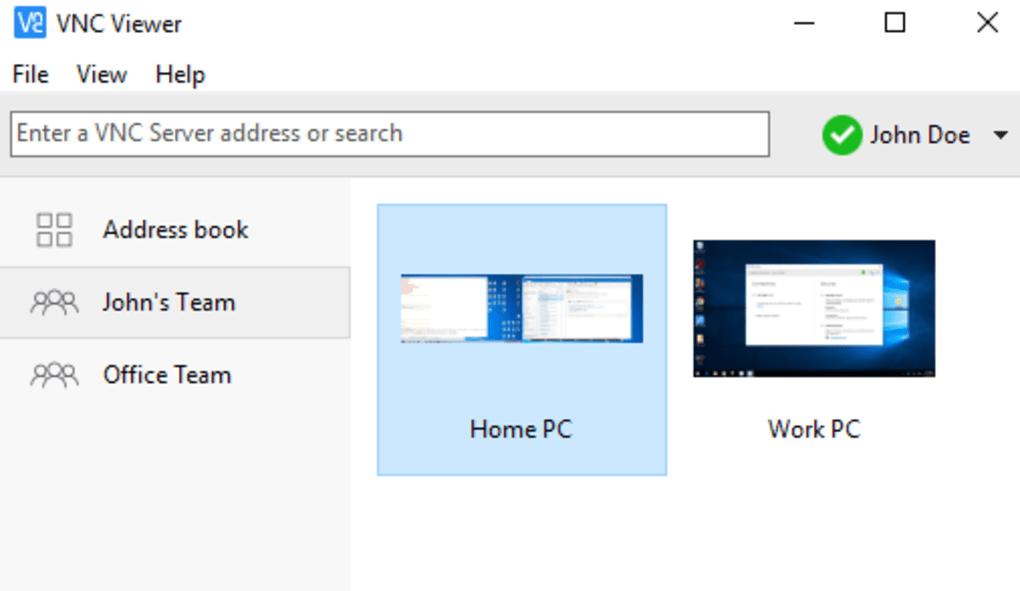
Connecting to your remote computer via VNC Connect is a straightforward process. It involves two primary components: the VNC Viewer and the VNC Server. The Server application resides on the computer you wish to access remotely, while the Viewer application is installed on the device you will use for remote control. The process can be summarized in the following steps:
-
Download and Installation: Download the VNC Connect installer, which typically bundles both the Viewer and Server applications. The installer guides you through the installation process, ensuring a smooth setup on your chosen operating system (Windows, macOS, etc.).
-
Account Creation and Login: Upon installation, you will be prompted to create a VNC Connect account or log in using existing credentials. This account acts as the central point of control, managing connections and security settings for all your connected devices. The login process is simple and secure, employing standard password protocols.
-
Connecting to the Remote Computer: Once logged in, the Viewer application will display a list of your registered computers. Simply select the target computer, and VNC Connect will establish a secure connection. The desktop of the remote computer will then be displayed on your local screen, allowing for complete control.
-
Remote Control and Functionality: Once connected, you can fully control the remote computer’s mouse, keyboard, and applications. VNC Connect supports a wide array of functions, including file transfers, printing to local printers from the remote computer, and more.
Security in VNC Connect: Protecting Your Remote Access
Security is a paramount concern when employing remote access software, and VNC Connect prioritizes secure connections through several measures. The software uses end-to-end encryption by default, ensuring that all data transmitted between the Viewer and Server remains confidential and protected from interception. This default encryption provides a strong foundation for secure remote access.
Beyond the default encryption, VNC Connect offers several advanced security features configurable within the software:
-
Enterprise Subscription: Higher-tier subscriptions provide enhanced security protocols and features, such as increased connection limits and more granular control over access permissions. These plans cater to businesses and users requiring robust security.
-
Strong Passwords: VNC Connect encourages the use of strong, unique passwords during account creation. The system provides guidance on password complexity, minimizing the risk of unauthorized access.
-
Two-Factor Authentication (2FA): Enabling 2FA adds an additional layer of security, requiring a second verification method (such as a one-time code) besides the password, making it significantly harder for unauthorized users to access your account.
-
Team Invitations and Access Control: VNC Connect allows you to invite trusted individuals to your team, granting them access to specific computers or limiting their actions on the remote machine. This fine-grained control provides flexibility and security.
-
Connection Approval: This feature allows you to approve or reject incoming connections, providing an extra layer of security against unauthorized access attempts.
-
Screen Blanking and Audit Logs: The screen blanking feature automatically locks the remote computer’s screen when not actively used, while audit logs track all connection attempts and activities, providing a detailed record of remote sessions.
Pricing and Availability: Is VNC Connect Free?
VNC Connect operates on a freemium model, offering a limited free tier alongside paid subscription options. The free tier allows for basic remote access to a limited number of computers (typically five) with a restricted number of simultaneous users (often three). This free tier is ideal for personal use with a small number of devices.
However, for broader usage, business environments, or enhanced security features, paid subscriptions become necessary. These subscriptions offer varying levels of functionality, increasing connection limits, storage capacity, and advanced security features. The pricing structure is tiered to accommodate a range of user requirements and budgets, making VNC Connect a potentially cost-effective solution, especially considering its robust security and features. A free trial period is often offered, allowing potential users to evaluate the software before committing to a paid plan.
Comparing VNC Connect to its Competitors
VNC Connect competes with several other remote desktop software applications, each offering a unique set of features and strengths. While many offer similar core functionalities, VNC Connect distinguishes itself through its user-friendly interface, strong security features, and various subscription tiers catering to diverse user needs. Consideration of specific needs, such as the number of devices to access, required security levels, and budget, will inform the optimal choice among competing remote desktop solutions.
For example, while some competitors might boast advanced features like drag-and-drop file transfer or superior performance in specific scenarios, VNC Connect excels in its balance of ease of use, security, and affordability.
Final Thoughts: A Comprehensive Remote Desktop Solution
VNC Connect presents a user-friendly and secure method for remotely accessing and controlling computers. Its intuitive interface, combined with robust security features and a flexible pricing structure, makes it a compelling option for individuals and businesses alike. While not entirely free, its free tier allows for basic functionality, making it accessible to a broader audience. The paid subscriptions provide substantial improvements in both feature sets and security, justifying their cost for users with higher needs. The availability of a trial period empowers potential users to thoroughly evaluate the software before committing to a subscription. Overall, VNC Connect stands out as a reliable and versatile solution for your remote desktop needs.
File Information
- License: “Free”
- Version: “6.2.1”
- Latest update: “December 6, 2023”
- Platform: “Windows”
- OS: “Windows 8.1”
- Language: “English”
- Downloads: “6.3K”
- Size: “18.87 MB”


