
VNC Viewer is a powerful and versatile remote desktop application that allows users to access and control computers remotely, regardless of their operating system (Windows, Linux, or Mac). This application essentially transforms your device into a virtual console, giving you complete control of a remote machine as if you were sitting directly in front of it. This capability unlocks numerous possibilities for both personal and professional use, ranging from troubleshooting technical issues to accessing important files from anywhere in the world. This comprehensive guide delves into the features, functionalities, and practical applications of VNC Viewer, providing a detailed overview for both novice and experienced users.
Understanding VNC and its Applications
At its core, VNC (Virtual Network Computing) is a graphical desktop-sharing system that leverages the remote frame buffer protocol. This protocol facilitates the transmission of keyboard and mouse inputs from your local device to the remote computer, while simultaneously relaying the visual output of the remote desktop back to your screen. This seamless interaction creates a virtual environment where you can interact with the remote computer as if it were directly connected to your device. The beauty of VNC lies in its platform independence; clients and servers are available for a wide array of GUI-based operating systems, including Windows, macOS, and various Linux distributions, often even extending to Java-based environments. Multiple clients can simultaneously connect to a single VNC server, enabling collaborative work and remote support scenarios.
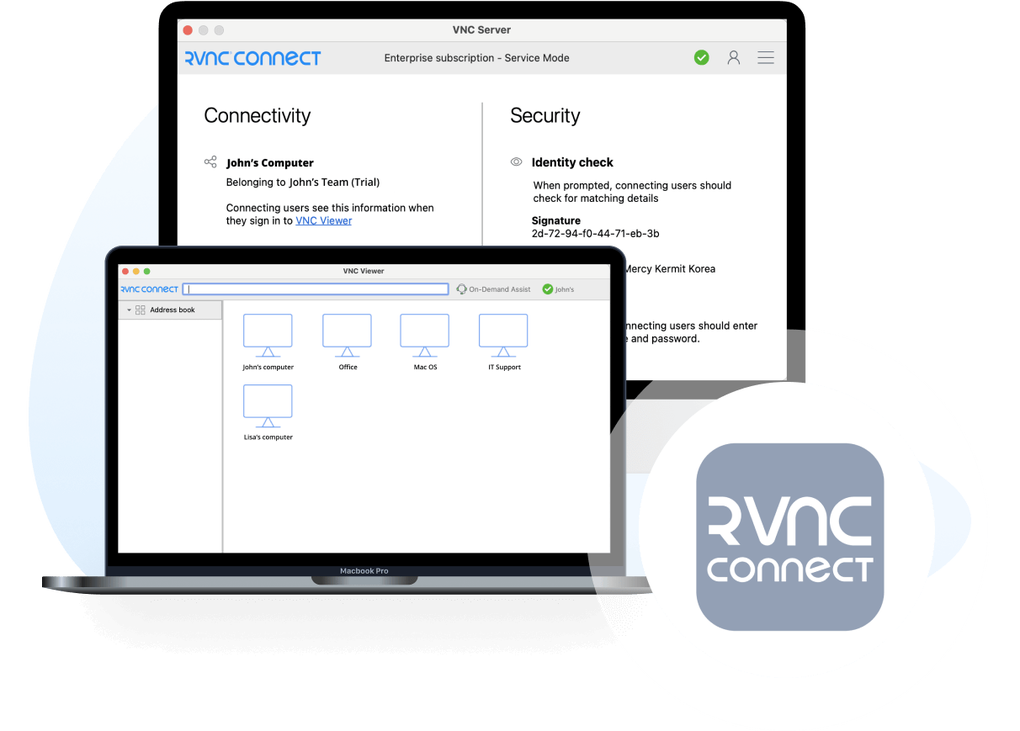
The applications of VNC technology are incredibly diverse. One primary use case is remote technical support, where technicians can access a user’s computer to diagnose and resolve problems without being physically present. This capability proves invaluable for resolving software glitches, hardware malfunctions, or network connectivity issues. Beyond technical support, VNC enables remote access to files and applications. Imagine working from home and needing to access a specific file located on your office computer; VNC makes this a straightforward process, eliminating the need for physical travel or complex file-sharing methods. Conversely, you could access your home computer’s resources from a remote location, seamlessly retrieving files, managing tasks, or simply monitoring your home network.
Key Features and Functionality of VNC Viewer
VNC Viewer boasts a range of features designed to enhance usability, security, and overall user experience. Beyond its core remote desktop functionality, several noteworthy features deserve highlighting:
-
Cross-Platform Compatibility: VNC Viewer transcends operating system limitations, providing seamless connectivity across Windows, macOS, and Linux environments. This universality makes it an ideal choice for users working across different platforms.
-
Bluetooth Peripheral Support: Expand your control options by connecting Bluetooth keyboards and mice to your local device for a more comfortable and intuitive remote interaction experience. This feature significantly enhances usability, especially during extended remote sessions.
-
Multi-Device Synchronization: Seamlessly sync your connections across multiple devices by simply logging into VNC Viewer on each one. This ensures that your saved connections, configurations, and preferences remain consistent across all your devices. No more re-entering connection details on every machine.
-
Robust Security: VNC Viewer prioritizes security through built-in password protection for each remote computer. This safeguards your remote connections from unauthorized access. Moreover, all sessions are encrypted end-to-end, safeguarding your data’s integrity and confidentiality from potential eavesdropping during transmission.
-
Easy Installation and Use: The installation process is remarkably simple and intuitive. For most users, it involves a straightforward installation of the VNC Viewer client on their local machine. However, the remote computer requires a VNC server to be installed and configured beforehand.
Installation and Configuration: A Step-by-Step Guide
Before utilizing VNC Viewer, it’s crucial to have a VNC server installed on the computer you intend to control remotely. Once the server is set up on the target machine, installing the VNC Viewer client on your local device becomes a straightforward process. Simply download the appropriate installer for your operating system and follow the on-screen prompts.
For Windows users, optional MSIs are available for remote deployment, offering streamlined installation in corporate or managed environments. If you lack the necessary administrative permissions to install the application directly to the desktop, consider the standalone installation option.
Connecting over the internet might require some network configuration adjustments, such as port forwarding or using a dynamic DNS service. This configuration depends entirely on your network setup and may require some familiarity with network settings. Keep in mind that network performance will influence the quality and responsiveness of the remote connection. Latency and bandwidth limitations can affect the smoothness of the remote desktop experience.
Importantly, VNC Viewer is entirely free to use. The only prerequisite is accepting the End-User License Agreement (EULA) upon the application’s first launch.
VNC Viewer: Advantages and Limitations
VNC Viewer offers compelling advantages, but it’s equally important to acknowledge its limitations:
Pros:
- Ease of Installation: The user-friendly installation process makes it accessible to users of all technical skill levels.
- Robust Performance: The application generally delivers a high-quality, responsive remote desktop experience.
- Excellent Visualization: The visual representation of the remote desktop is typically sharp and clear, facilitating comfortable remote work.
- End-to-End Encryption: The security measures implemented by VNC Viewer protect user data and ensure the confidentiality of remote sessions.
Cons:
- Performance Variability: The performance of VNC Viewer can fluctuate depending on the network conditions and the specifications of both the local and remote machines. Poor network connectivity, for example, can lead to lag and reduced responsiveness.
- Platform-Specific Issues: While generally cross-platform compatible, minor inconsistencies or compatibility challenges might arise depending on the specific operating systems and configurations involved.
Alternatives to VNC Viewer
While VNC Viewer stands as a highly capable and popular remote desktop solution, several alternatives exist catering to diverse needs and preferences:
- RustDesk: An open-source, free alternative known for its performance and ease of use.
- Supremo: A user-friendly solution that often emphasizes reliability and ease of setup.
- RealVNC: A commercial option offering advanced features and robust support for business applications.
- VMware Workstation Pro: A virtual machine software offering advanced remote desktop functionalities.
Choosing the right alternative depends on factors such as your budget, technical skills, and specific requirements. Evaluating the features and strengths of each option helps determine the best fit for your individual needs. Open-source alternatives often provide flexibility and customization, while commercial options typically come with better support and advanced features. Considering factors like security, ease of use, and cross-platform compatibility helps make an informed decision.
In conclusion, VNC Viewer provides a robust and versatile solution for remote desktop access. Its ease of use, security features, and cross-platform compatibility make it an excellent choice for individuals and organizations requiring reliable remote control capabilities. However, potential users should also be aware of its performance limitations and consider available alternatives based on their specific needs and technical expertise. By understanding its capabilities and limitations, users can fully leverage the power of VNC Viewer to enhance their productivity and efficiency across multiple devices and platforms.
File Information
- License: “Free”
- Latest update: “May 1, 2025”
- Platform: “Windows”
- OS: “Windows 10”
- Language: “English”
- Downloads: “101.9K”
- Size: “12.65 MB”


