
Windows Search, a built-in tool for locating files and information on your computer and network, has been a staple of the Windows operating system for years. While its functionality has evolved with each iteration of Windows, its core purpose remains the same: to provide a quick and efficient way to find what you need, regardless of its location. This review examines the capabilities, strengths, and weaknesses of Windows Search, comparing it to alternative search utilities and assessing its overall effectiveness in today’s computing landscape.
Functionality and Features
Windows Search is deeply integrated into the Windows operating system. It allows users to search for files and folders based on various criteria, including file name, content, date modified, type, and even metadata. Its search index covers a broad range of file types and locations, typically including the hard drive, removable drives, and network shares. This indexing process, however, can sometimes be slow, particularly on systems with large amounts of data or slow hard drives. The speed and efficiency of the search are also significantly influenced by the indexing options selected during setup. The user can adjust these settings to optimize for speed versus comprehensiveness of the index, balancing system performance against the thoroughness of search results.
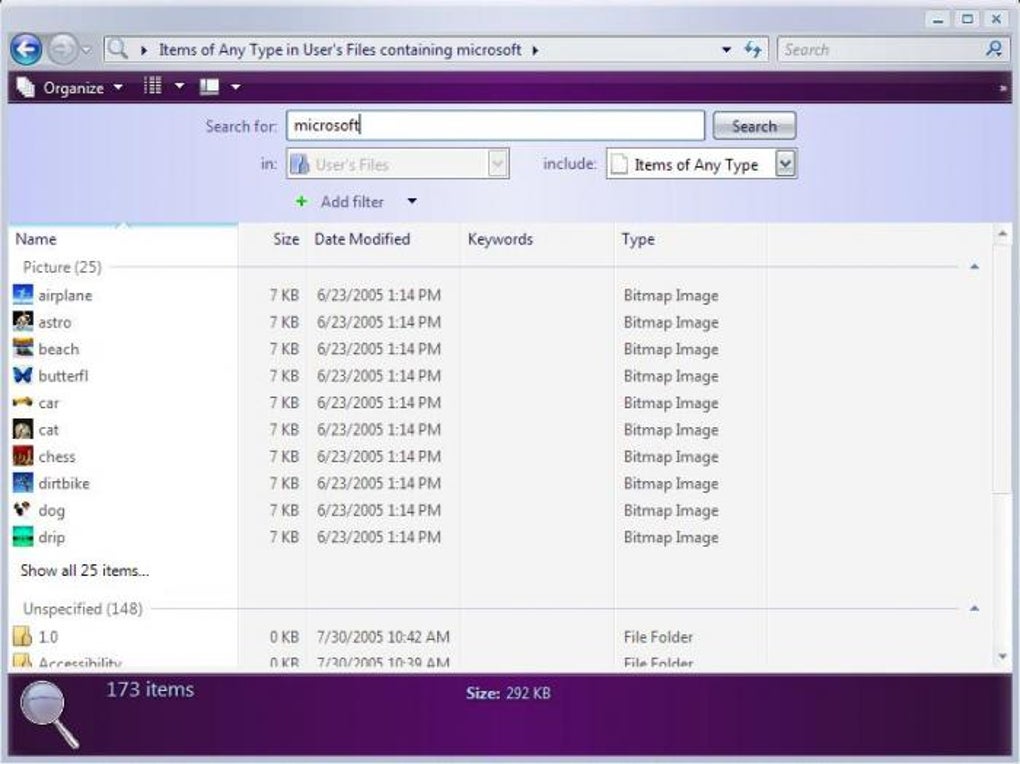
The search interface itself is relatively straightforward. A search box, accessible from the Start menu or the taskbar, allows users to type their query. Windows Search’s algorithm attempts to interpret the query and return relevant results based on keyword matching, partial matches, and potentially even semantic understanding. The results are displayed in a list, showing file names, locations, and sometimes previews. The user can then select the desired file or folder to open it.
In addition to basic file searching, Windows Search integrates with other Windows applications and services. This allows for searching within specific applications, such as Outlook, for emails and calendar events. This integration improves workflow by allowing users to conduct searches within their typical work environments, eliminating the need to switch to a separate application. It’s worth noting that the depth and breadth of this integration can vary depending on the version of Windows and the specific application in question.
One notable feature of Windows Search is its ability to search across multiple drives and network shares. This allows users to centrally locate files stored on different devices, streamlining data management. However, this capability is not without its challenges. Network searches can be slower than local searches due to network latency and potential limitations in network bandwidth. Additionally, access permissions and network connectivity issues can significantly impact the effectiveness and speed of these searches.
Performance and Limitations
While Windows Search provides a valuable built-in search functionality, it is not without its shortcomings. Many users have reported that the search speed is considerably slower than dedicated third-party alternatives, especially for extensive searches across multiple locations or within large files. This slow-down is often attributed to the indexing process itself; the initial indexing of a large drive can take considerable time, and continuous indexing of new or modified files adds to the system overhead.
Another limitation is the occasional inaccuracy of search results. The algorithm may not always understand the nuance of search queries or effectively filter irrelevant results. This can lead to users needing to sift through a large number of results to find what they are looking for. This issue may be more pronounced for complex queries or when searching within files with unstructured data.
Finally, the customization options available within Windows Search are limited compared to many third-party alternatives. While users can adjust the indexing locations and some indexing options, they lack the fine-grained control over search behavior and filters that some dedicated search utilities offer. This limited configurability can make it challenging to optimize the search for specific use cases or to address specific performance issues.
Comparison with Alternatives
Several third-party search utilities offer more advanced functionalities and improved performance compared to Windows Search. These tools often feature faster indexing speeds, more sophisticated search algorithms, and greater customization options.
-
Everything: This free utility is renowned for its incredibly fast search capabilities. It indexes the entire file system almost instantaneously, providing virtually instant search results. Its strength lies in its simplicity and speed, making it a popular choice for those who prioritize rapid search results.
-
Agent Ransack: Another powerful free tool, Agent Ransack provides advanced search options, allowing users to specify criteria like file size, modification date, and content. Its regular expressions support allows for highly customized searches, making it suitable for experienced users needing fine-grained control.
-
Google Desktop (discontinued): Though no longer supported, Google Desktop was a popular alternative in its time. It offered advanced features, including web indexing, which integrated web search results with local file searches. Its discontinuation illustrates the dynamic nature of the search utility market.
-
Copernic Desktop Search: A commercial option, Copernic Desktop Search offers a comprehensive suite of features, including advanced indexing, filtering, and management tools. Its strength lies in its versatility and support for a wide range of file types.
Choosing the appropriate search utility depends heavily on the user’s specific requirements. While Windows Search provides a functional built-in option, users who require superior speed, more advanced search capabilities, or enhanced customization may find third-party options more suitable.
User Reviews and Feedback
User reviews of Windows Search are often mixed. While some users find it adequately serves their basic search needs, others express frustration with its speed, accuracy, and limited features. Negative reviews frequently highlight slow search times, particularly on larger systems or when searching network shares. The limited customization options are also frequently criticized. However, many users appreciate its integration within the Windows operating system and its ease of use for simple search tasks.
Conclusion
Windows Search is a functional built-in search utility that provides a basic level of file and data searching within the Windows operating system. Its integration with other Windows applications and its ability to search across networks are valuable assets. However, its performance limitations, such as slow search times and occasional inaccuracy, hinder its ability to compete effectively with more advanced third-party alternatives. Users with simple search needs and who prioritize ease of use may find it sufficient. However, those requiring faster search speeds, advanced search capabilities, or more fine-grained control should explore dedicated third-party search utilities to better meet their needs. The choice between Windows Search and alternatives ultimately depends on individual priorities and requirements regarding speed, functionality, and customization.
File Information
- License: “Free”
- Version: “4.0”
- Latest update: “January 11, 2009”
- Platform: “Windows”
- OS: “Windows XP”
- Language: “English”
- Downloads: “61.4K”
- Size: “4.88 MB”


